 ## Configuring Content Similarity
Before you begin comparing similarity scores, you must add document types to the _Content Similarity_ document type group.
## Configuring Content Similarity
Before you begin comparing similarity scores, you must add document types to the _Content Similarity_ document type group.
Note: Vault only displays the Content Similarity panel on document types added to the Content Similarity document type group.
 .
To add documents to the _Content Similarity_ panel, click . You can add a maximum of five (5) documents to the panel. Adding a document to the panel creates a new _Created From_ relationship
between the source and target documents. Click to remove a document from the panel and delete the associated _Created From_ relationship.
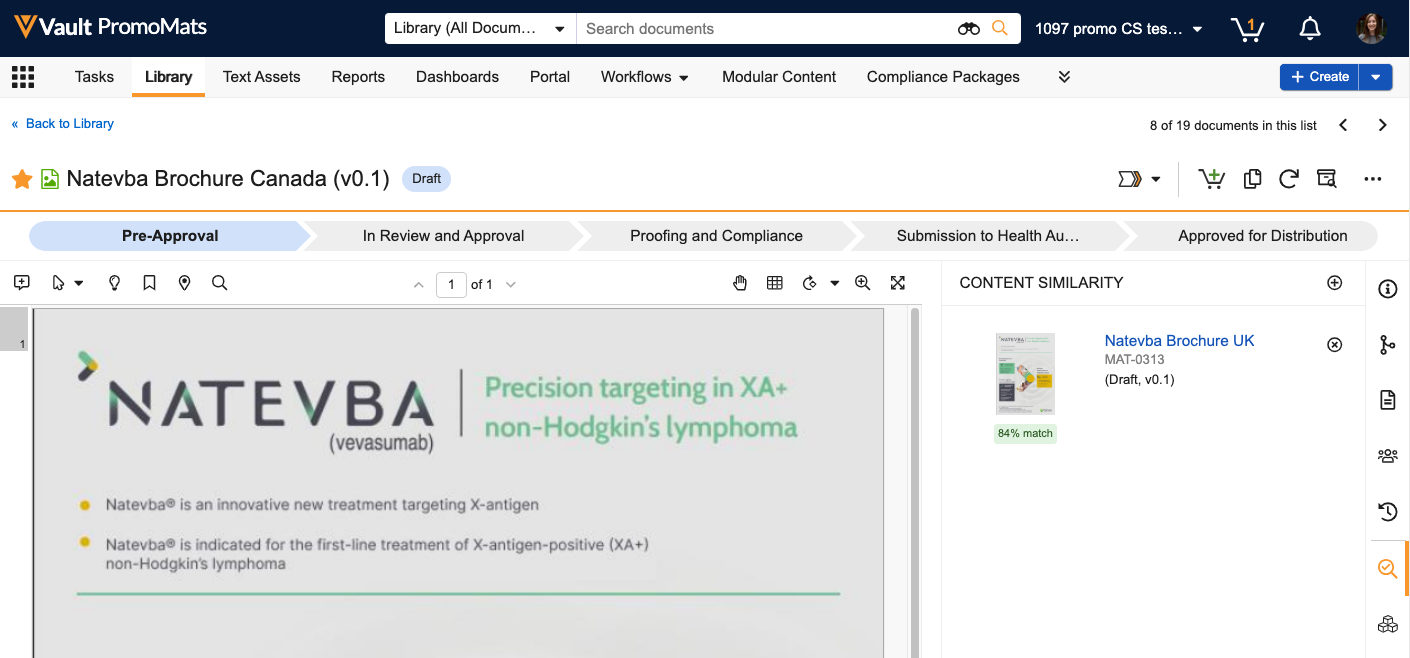
The _Content Similarity_ panel displays a thumbnail alongside the name, number, version, and lifecycle state for each target document. Once calculated, Vault displays the similarity score below the thumbnail when the page is refreshed.
Vault recalculates the similarity score when the source document is re-rendered.
## Configuring Lifecycles & Workflows
You can use similarity scores to drive tier-based review workflows by adding the `AppHighestSimilarityScore(Document.id__v)` app function to document lifecycles and document workflows. For example, you can use this function in user actions and workflow start steps and anywhere else formulas are accepted. This function searches _Content Similarity_ records linked to the source document and returns the highest overall similarity score.
To use this function, add an argument to the end using a decimal number. Do not remove or replace the content in parentheses. For example, if you would like to specify a behavior when a document has a similarity score greater than 90%, the formula should be `AppHighestSimilarityScore(Document.id__v)> 0.9`.
## Limitations
The following limitations apply to content similarity scores:
* Vault calculates similarity scores using only the first 15 pages of larger documents.
* Vault can only calculate text similarity scores for a maximum of 75 terms.
* Vault removes similarity scores from the _Content Similarity_ panel when the document enters its steady state. You cannot add documents to the panel if the document is in its steady state.
* You cannot compare binders, audio files, and video files that do not have a viewable PDF rendition.
* You cannot compare documents that do not have indexed text.
* You cannot compare similarity scores for the following document types:
* _eCTD Submission Ready Documents_ (`ectd_submission_ready_documents__v`)
* _Reference_ (`reference__v`)
* _Template_ (`template__v`)
* _Content Module_ (`content_module__v`)
* _Event Material_ (`event_material__v`)
* _InDesign Component_ (`indesign_component__v`)
* _Undefined_ (`undefined__v`)
* _Health Authority Form_ (`health_authority_form__v`)
* _Compliance Package_ (`compliance_package__v`)
* _Engage Presentation_ (`engage_presentation__v`)
* _Template Fragment_ (`template_fragment__v`)
* For documents that are not in English, ensure the _Language_ (`language__v`) field is populated with the language of both the source and target documents.
## Related Permissions
You must have the _View Content_ permission
on target documents to view document metadata, including the similarity score, in the _Content Similarity_ panel. You must also have the _Edit Relationships_ permission on the source document to add or remove documents from the _Content Similarity_ panel.
.
To add documents to the _Content Similarity_ panel, click . You can add a maximum of five (5) documents to the panel. Adding a document to the panel creates a new _Created From_ relationship
between the source and target documents. Click to remove a document from the panel and delete the associated _Created From_ relationship.
The _Content Similarity_ panel displays a thumbnail alongside the name, number, version, and lifecycle state for each target document. Once calculated, Vault displays the similarity score below the thumbnail when the page is refreshed.
Vault recalculates the similarity score when the source document is re-rendered.
## Configuring Lifecycles & Workflows
You can use similarity scores to drive tier-based review workflows by adding the `AppHighestSimilarityScore(Document.id__v)` app function to document lifecycles and document workflows. For example, you can use this function in user actions and workflow start steps and anywhere else formulas are accepted. This function searches _Content Similarity_ records linked to the source document and returns the highest overall similarity score.
To use this function, add an argument to the end using a decimal number. Do not remove or replace the content in parentheses. For example, if you would like to specify a behavior when a document has a similarity score greater than 90%, the formula should be `AppHighestSimilarityScore(Document.id__v)> 0.9`.
## Limitations
The following limitations apply to content similarity scores:
* Vault calculates similarity scores using only the first 15 pages of larger documents.
* Vault can only calculate text similarity scores for a maximum of 75 terms.
* Vault removes similarity scores from the _Content Similarity_ panel when the document enters its steady state. You cannot add documents to the panel if the document is in its steady state.
* You cannot compare binders, audio files, and video files that do not have a viewable PDF rendition.
* You cannot compare documents that do not have indexed text.
* You cannot compare similarity scores for the following document types:
* _eCTD Submission Ready Documents_ (`ectd_submission_ready_documents__v`)
* _Reference_ (`reference__v`)
* _Template_ (`template__v`)
* _Content Module_ (`content_module__v`)
* _Event Material_ (`event_material__v`)
* _InDesign Component_ (`indesign_component__v`)
* _Undefined_ (`undefined__v`)
* _Health Authority Form_ (`health_authority_form__v`)
* _Compliance Package_ (`compliance_package__v`)
* _Engage Presentation_ (`engage_presentation__v`)
* _Template Fragment_ (`template_fragment__v`)
* For documents that are not in English, ensure the _Language_ (`language__v`) field is populated with the language of both the source and target documents.
## Related Permissions
You must have the _View Content_ permission
on target documents to view document metadata, including the similarity score, in the _Content Similarity_ panel. You must also have the _Edit Relationships_ permission on the source document to add or remove documents from the _Content Similarity_ panel.