# Configuring Communication Objectives
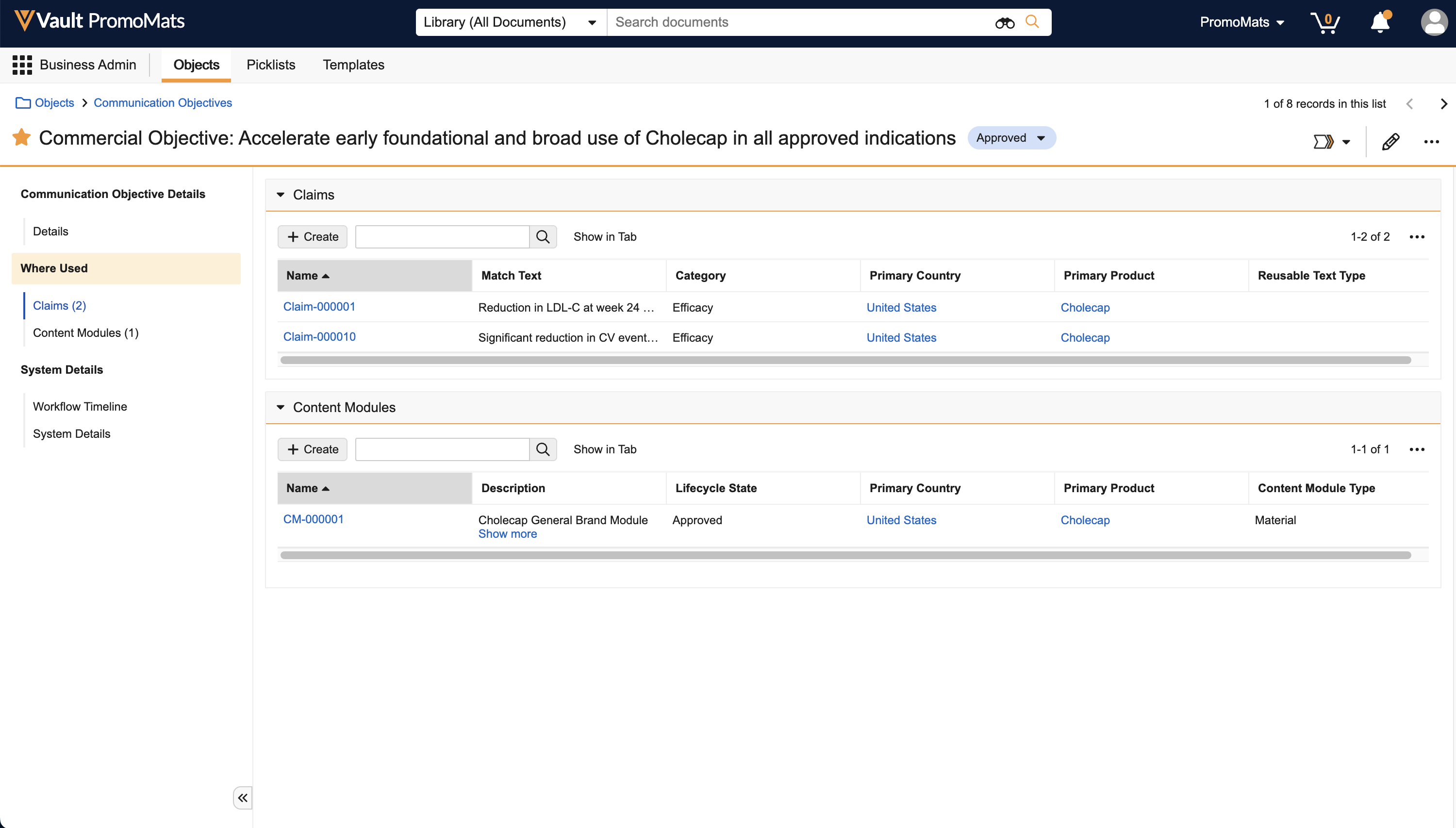
In Veeva PromoMats, _Communication Objectives_ are promotional goals derived from strategic imperatives and associated with categories such as _Efficacy_ and _Safety_. You can associate _Communication Objectives_ with documents, _Content Modules_, or _Claims_, giving you insight into content strategy execution.
## Creating Communication Objectives
To create _Communication Objectives_, navigate to **Business Admin > Objects > Communication Objective** and click **Create**. You can also create a custom tab so users can view and work with _Communication Objectives_ outside of the **Admin** area.
 You can also create _Communication Objective Brand_ and _Communication Objective Country_ records to associate _Communication Objectives_ with multiple _Brands_ and _Countries_. _Communication Objective_ records can only include one primary _Brand_ and _Country_.
### Activating Categories {#categories}
Standard _Category_ picklist values are inactive in existing Vaults if you have configured custom values. Otherwise, by default, these values are active. To activate picklist values:
1. Navigate to **Business Admin > Picklists > Category**.
2. Click **Show Inactive Values**.
3. Double click the **Picklist Value Status** field next to the value(s) you want to activate.
4. Select **Active**.
5. Click out of the field to save the change.
## Associating Communication Objectives
You can associate a _Communication Objective_ with a _Content Module_ or _Claim_ by navigating to the document or object record and selecting the desired record in the _Communication Objective_ field. By default, this new field is added to the _Content Module_ and _Claim_ standard action layouts.
You can add the new _Communication Objective_ shared document field to relevant document types. On documents, the _Communication Objective_ field can be populated manually by users, automatically by Vault, or both. You can manually select a _Communication Objective_ in the _Communication Objective_ field of the Doc Info page. You must configure and perform the _Sync Communication Objective_ user action or entry action to create the associated _Communication Objective Content_ record for reporting.
You can also create _Communication Objective Brand_ and _Communication Objective Country_ records to associate _Communication Objectives_ with multiple _Brands_ and _Countries_. _Communication Objective_ records can only include one primary _Brand_ and _Country_.
### Activating Categories {#categories}
Standard _Category_ picklist values are inactive in existing Vaults if you have configured custom values. Otherwise, by default, these values are active. To activate picklist values:
1. Navigate to **Business Admin > Picklists > Category**.
2. Click **Show Inactive Values**.
3. Double click the **Picklist Value Status** field next to the value(s) you want to activate.
4. Select **Active**.
5. Click out of the field to save the change.
## Associating Communication Objectives
You can associate a _Communication Objective_ with a _Content Module_ or _Claim_ by navigating to the document or object record and selecting the desired record in the _Communication Objective_ field. By default, this new field is added to the _Content Module_ and _Claim_ standard action layouts.
You can add the new _Communication Objective_ shared document field to relevant document types. On documents, the _Communication Objective_ field can be populated manually by users, automatically by Vault, or both. You can manually select a _Communication Objective_ in the _Communication Objective_ field of the Doc Info page. You must configure and perform the _Sync Communication Objective_ user action or entry action to create the associated _Communication Objective Content_ record for reporting.
 ### Automatically Associating Communication Objectives to Documents
If a document includes a _Claim_ record that is associated with a _Communication Objective_, Vault automatically populates the _Communication Objective_ document field in two ways:
* Auto-linking, either by Auto-linking on upload, clicking the Auto-linking icon, or Suggest Links
* Manually creating _Claim_ link annotations, and then performing the _Sync Communication Objective_ entry action or user action
When Vault automatically populates the _Communication Objective_ document field, it also creates the _Communication Objective Content_ records for reporting.
### Removing Communication Objectives from Documents
You can remove a _Communication Objective_ from a document in one of the following ways:
* Manually removing the _Communication Objective_ value from the Doc Info page and click **Save**
* Removing the _Claim_ link annotation from the document
After performing either of these actions, you must also perform the _Sync Communication Objective_ action to update the associated _Communication Objective Content_ record.
## Reporting on Communication Objectives
You can report on _Communication Objectives_ by viewing one of the following reports:
* **Communication Objective with Document and Claims**: Returns a list of _Communication Objectives_ and what document and page the _Claim_ is found on (if applicable)
* This report uses the _Communication Objective Content_ object. To use this report, these records can be created automatically through Auto-linking or the _Sync Communication Objective_ user or entry action described above.
* **Communication Objective with Content Modules**: Returns a list of _Communication Objectives_ and the _Content Module_ the objective is linked to
## Related Permissions
You can complete all steps in this article with the standard Business Admin, System Admin, or Vault Owner profile. If your vault uses custom security profiles, your profile must grant the following permissions:
| Type | Permission Label | Controls |
| --- | --- | --- |
| Security Profile | Objects: Communication Objective: Read, Create, Edit, Delete | Ability to view, edit, and manage _Communication Objective_ object records. |
| Security Profile | Objects: Text Asset: Create, Edit, Delete | Ability to create, edit, and delete claims, including references |
| Security Profile | Objects: Text Asset Target: Create, Edit, Delete | Ability to see and add suggested links |
| Security Profile | Objects: Link Target: Create, Edit, Delete | Ability to see and add suggested links |
| Security Profile | Admin: Configuration: Document Lifecycles: Read, Edit | Ability to view and edit existing document lifecycles |
### Automatically Associating Communication Objectives to Documents
If a document includes a _Claim_ record that is associated with a _Communication Objective_, Vault automatically populates the _Communication Objective_ document field in two ways:
* Auto-linking, either by Auto-linking on upload, clicking the Auto-linking icon, or Suggest Links
* Manually creating _Claim_ link annotations, and then performing the _Sync Communication Objective_ entry action or user action
When Vault automatically populates the _Communication Objective_ document field, it also creates the _Communication Objective Content_ records for reporting.
### Removing Communication Objectives from Documents
You can remove a _Communication Objective_ from a document in one of the following ways:
* Manually removing the _Communication Objective_ value from the Doc Info page and click **Save**
* Removing the _Claim_ link annotation from the document
After performing either of these actions, you must also perform the _Sync Communication Objective_ action to update the associated _Communication Objective Content_ record.
## Reporting on Communication Objectives
You can report on _Communication Objectives_ by viewing one of the following reports:
* **Communication Objective with Document and Claims**: Returns a list of _Communication Objectives_ and what document and page the _Claim_ is found on (if applicable)
* This report uses the _Communication Objective Content_ object. To use this report, these records can be created automatically through Auto-linking or the _Sync Communication Objective_ user or entry action described above.
* **Communication Objective with Content Modules**: Returns a list of _Communication Objectives_ and the _Content Module_ the objective is linked to
## Related Permissions
You can complete all steps in this article with the standard Business Admin, System Admin, or Vault Owner profile. If your vault uses custom security profiles, your profile must grant the following permissions:
| Type | Permission Label | Controls |
| --- | --- | --- |
| Security Profile | Objects: Communication Objective: Read, Create, Edit, Delete | Ability to view, edit, and manage _Communication Objective_ object records. |
| Security Profile | Objects: Text Asset: Create, Edit, Delete | Ability to create, edit, and delete claims, including references |
| Security Profile | Objects: Text Asset Target: Create, Edit, Delete | Ability to see and add suggested links |
| Security Profile | Objects: Link Target: Create, Edit, Delete | Ability to see and add suggested links |
| Security Profile | Admin: Configuration: Document Lifecycles: Read, Edit | Ability to view and edit existing document lifecycles |