# Commenting on Text Assets
While maintaining your text and claims library in Veeva PromoMats, you can review and provide feedback on a _Text Asset_ directly on the _Text Asset_ record. Users with _Read_ and Atomic Security permissions on the _Text Asset Comment_ (`text_asset_comment__v`) object on the relevant _Text Asset Lifecycle_ (`annotation_keywords_lifecycle__sys`) state can view the comments on a _Text Asset_ record. Users with _Edit_ permissions on the _Text Asset Comment_ object can add and edit a comment.
Vault displays next to sections and fields with active, unresolved comments. Vault displays next to sections and fields with resolved comments.
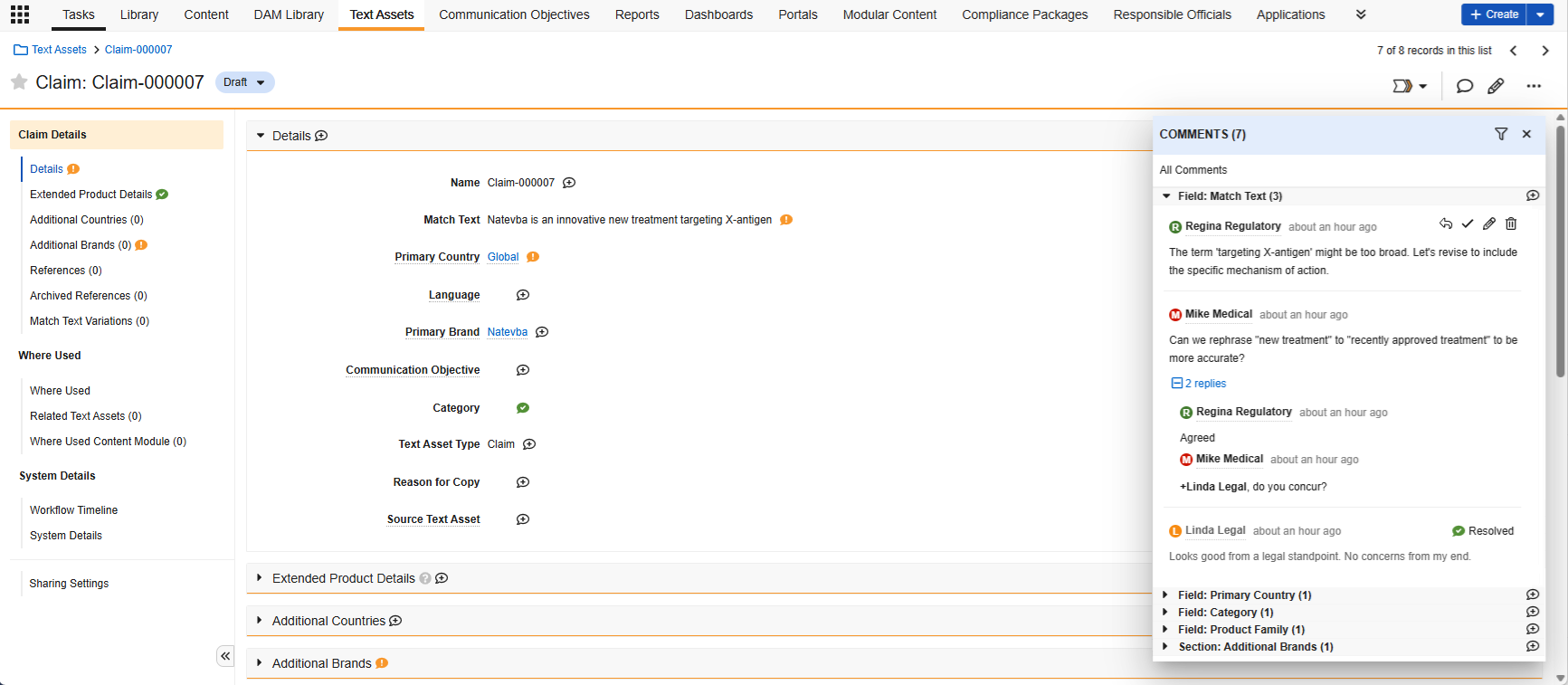 ## Using the Comments Panel
To open the comments panel, navigate to a **Text Asset** record detail page and click **Open comments**. You can also press **SHIFT + CMD + X** or **SHIFT + CTRL + X** on your Mac or Windows keyboard, or click the **Open Comments** user action in the **Actions** menu. This opens the _Aggregate_ view, displaying all active comments for that record, organized by field or section. You can drag the comments panel to expand it.
By default, the panel displays unresolved active comments. To apply filters to the panel, click **Filter**. To interact with a comment, click the **Actions** menu and select **Reply** , **Resolve** , **Edit** , and **Delete** . You cannot add a new comment in the _Aggregate_ view, only reply to an existing comment. You must have the _Delete_ permission on the _Text Asset Comment_ object to delete comments.
To open the _Specific_ view for one field, or to add a comment, click next to the field or section name. You can also apply filters in the _Specific_ view by clicking **Filters**. To return to the _Aggregate_ view in the comments panel, click **All Comments**.
Before clicking **Save**, you can also select a color for your comment. If you want to notify a user about a comment, mention them by typing "@" and the beginning of their first name, last name, or Vault username in the _Comment_ field and selecting from the list of users.
You can only delete your own comments and replies. If another user replied to your comment or reply, you cannot edit or delete it.
### Entry Actions & Criteria
To ensure that all active comments related to a _Text Asset_ are resolved before it moves states, you can add the _All Comments Are Resolved_ entry criteria to any state in the _Text Asset Lifecycle_. You can also add the _Delete All Comments_ entry action to any state to asynchronously delete all active and inactive comments and replies on the relevant _Text Asset_ record.
## Limitations
The following limitations apply to _Text Asset_ commenting:
* Comments cannot exceed 5000 characters.
* You can add a maximum of 5000 comments to an individual _Text Asset_ record.
* You can add a maximum of 50 user mentions to an individual comment or reply.
* You cannot create or edit comments from Business Admin or the _References_ section or any _Related Document_.
* Performing the _Copy Record_ action on a _Text Asset_ does not copy the associated comments and replies.
* You can only create comments for an entire _Related Object_ section, not for individual records within a _Related Object_ section.
* Users with _View_ permission on a _Text Asset_ object but not on the _Where Used_ object control (disabled either via a permission set or Atomic Security on any state in the _Text Asset Lifecycle_) can still view comments created for _Where Used_ in the _Aggregate_ view.
* Users can see existing comments hidden using layout rules for fields or sections in the _Aggregate_ view.
## Related Permissions
The following permissions control functionality related to commenting on _Text Assets_:
| Type | Permission Label | Controls |
| --- | --- | --- |
| Security Profile | Objects: Text Asset: Read | Ability to see _Text Asset_ records |
| Security Profile | Objects: Text Asset: Object Action Permissions: Open Comments: View, Execute | Ability to view and manage the _Open Comments_ user action |
| Security Profile | Objects: Text Asset Comment: Create, Read, Edit, Delete | Ability to create, read, edit, resolve, and delete comments on _Text Asset_ records
## Using the Comments Panel
To open the comments panel, navigate to a **Text Asset** record detail page and click **Open comments**. You can also press **SHIFT + CMD + X** or **SHIFT + CTRL + X** on your Mac or Windows keyboard, or click the **Open Comments** user action in the **Actions** menu. This opens the _Aggregate_ view, displaying all active comments for that record, organized by field or section. You can drag the comments panel to expand it.
By default, the panel displays unresolved active comments. To apply filters to the panel, click **Filter**. To interact with a comment, click the **Actions** menu and select **Reply** , **Resolve** , **Edit** , and **Delete** . You cannot add a new comment in the _Aggregate_ view, only reply to an existing comment. You must have the _Delete_ permission on the _Text Asset Comment_ object to delete comments.
To open the _Specific_ view for one field, or to add a comment, click next to the field or section name. You can also apply filters in the _Specific_ view by clicking **Filters**. To return to the _Aggregate_ view in the comments panel, click **All Comments**.
Before clicking **Save**, you can also select a color for your comment. If you want to notify a user about a comment, mention them by typing "@" and the beginning of their first name, last name, or Vault username in the _Comment_ field and selecting from the list of users.
You can only delete your own comments and replies. If another user replied to your comment or reply, you cannot edit or delete it.
### Entry Actions & Criteria
To ensure that all active comments related to a _Text Asset_ are resolved before it moves states, you can add the _All Comments Are Resolved_ entry criteria to any state in the _Text Asset Lifecycle_. You can also add the _Delete All Comments_ entry action to any state to asynchronously delete all active and inactive comments and replies on the relevant _Text Asset_ record.
## Limitations
The following limitations apply to _Text Asset_ commenting:
* Comments cannot exceed 5000 characters.
* You can add a maximum of 5000 comments to an individual _Text Asset_ record.
* You can add a maximum of 50 user mentions to an individual comment or reply.
* You cannot create or edit comments from Business Admin or the _References_ section or any _Related Document_.
* Performing the _Copy Record_ action on a _Text Asset_ does not copy the associated comments and replies.
* You can only create comments for an entire _Related Object_ section, not for individual records within a _Related Object_ section.
* Users with _View_ permission on a _Text Asset_ object but not on the _Where Used_ object control (disabled either via a permission set or Atomic Security on any state in the _Text Asset Lifecycle_) can still view comments created for _Where Used_ in the _Aggregate_ view.
* Users can see existing comments hidden using layout rules for fields or sections in the _Aggregate_ view.
## Related Permissions
The following permissions control functionality related to commenting on _Text Assets_:
| Type | Permission Label | Controls |
| --- | --- | --- |
| Security Profile | Objects: Text Asset: Read | Ability to see _Text Asset_ records |
| Security Profile | Objects: Text Asset: Object Action Permissions: Open Comments: View, Execute | Ability to view and manage the _Open Comments_ user action |
| Security Profile | Objects: Text Asset Comment: Create, Read, Edit, Delete | Ability to create, read, edit, resolve, and delete comments on _Text Asset_ records
Ability to view and manage the _Open Comments_ user action |
|Security Profile | Objects: User: Object Field Permissions: Name, User Name, Email: Read | Ability to see and mention users after typing @ in the _Comment_ field |