# Using Text and Claims Management
PromoMats can compare claims statements and other product information to automatically suggest and create [link annotations](/en/lr/9777/) to relevant reference materials via the _Suggest Links_ action. There are four ways to link to a _Claim_:
* **Suggested Links**: When a document enters a given lifecycle state or when you perform the _Suggest Links_ user action on a document, Vault generates Suggested Links for non-exact text matches, which you must review and accept or reject.
* **Approved Links**: When you accept a pending Suggested Link, it becomes an Approved Link.
* **Auto-Accepted Links**: When a document enters a given lifecycle state or when you perform the _Suggest Links_ user action on a document, Vault generates Auto-Accepted Links for exact text matches, which do not require review or approval. Your Admin may disable Auto-Accepted Links.
* **Claim Links**: You can select the _Claim_ type to manually select a claim based on matching fields.
## Using the Auto-Linking Action {#auto-linking-action}
_Auto-Linking_ is available by default for the _Material_ (`material__v`) document type but can be made available for other document types when your Admin [enables the _Suggested Links_ action](/en/lr/57379/#enabling-disabling) per each document type.
Once enabled, the _Auto-Linking_ () icon becomes available in the document viewer toolbar; clicking it generates Suggested Links on the document. The icon is only visible if the user has _Annotate_ and _Edit Relationships_ permissions on the document.
However, existing customer configurations are respected. If the _Suggest Links_ [user action](/en/lr/12339/) or [entry action](/en/lr/12399/) is configured on a document lifecycle state, the _Auto-Linking_ () icon is available only on that same state. To ensure that the icon always appears, remove all _Suggest Links_ user and entry actions from all active document lifecycle states first.
### Auto-Linking on Upload {#auto-linking-upload}
Your Admin may configure auto-linking on upload using the [_Text Asset Auto-Linking Settings_](/en/lr/57379/#auto-linking) page, which allows Vault to automatically add Auto-Links to documents when you upload a new version during a selected document lifecycle state.
### Reviewing & Accepting Suggested Links
When the _Auto-Linking_ action is complete, click **refresh** in the notification to open the suggested links view. Once generated, suggested links appear to the right of the document. Click a Suggested Link to view it, then click **Accept** to add the link or **Reject** to reject the suggestion. You must have the _View_ permission on the documents referenced by the Suggested Link to accept or reject it. You can also hover over the name of the document in the Suggested Link for more information, or click the name to open the document. To view the _Text Asset_ record that Vault used to generate the suggested link, click its name in the _From_ field. If you select a target or document type that is disabled by your Admin after you open the _Select Anchor_ dialog, you will receive an error message.
When you accept a Suggested Link, Vault creates an Approved Link annotation. You cannot move, add, or remove references from the resulting Approved Link annotation, and these options will not appear in the annotation toolbar.
Vault displays the related _Text Asset_ records for all Suggested and Approved Links in the _Pending_ and _Approved_ status in the _Text Assets_ section of the document fields panel. Hover over the _Text Asset_'s name for details, or click it to go to the _Text Asset_'s record detail page. If you reject all Suggested Links for a _Text Asset_, it no longer appears in this section.
## About Auto-Accepted Links
In cases where there is an exact text match, Vault creates an Auto Link annotation authored by the user who created it, either by updating the document lifecycle state or by performing the _Suggest Links_ user action. Auto-Accepted Links are similar to Suggested Links, but Vault adds the resulting annotations without the need for you to review and accept links. You cannot move Auto-Accepted Links or edit their references; however, an Auto Link's author can edit its comments and tags and delete the annotation. Vault displays the related _Text Asset_ records for all Auto-Accepted Links in the _Text Assets_ section of the document fields panel.
If your Admin has disabled Auto-Accepted Links, Vault generates Suggested Links for all matches.
To create Auto-Accepted Links, click . If your Admin does not configure the _Auto-Linking_ action on any document lifecycle states, this icon is available on all states. If they configure the action on a document lifecycle state, Vault only displays this icon on that state.
## Manually Linking to Text Assets {#manual-linking}
Vault does not generate suggested links or Auto-Accepted Links for non-text content. You can add claim links to documents manually if manual linking to claims is enabled in your Vault, the document has a viewable or video rendition, and the _Suggest Links_ user action is enabled for the doctype. To add links to claims manually:
1. Click the **View annotations** button to enter annotation mode.
2. Click **Select annotation tool** and select the **link cursor** mode.
3. Click the link type drop-down to the right of the cursor mode icon and select **Text Asset**. If your Admin has changed the label for the `annotation_keywords__sys` object in your Vault, you will see this label in the drop-down instead.
4. Highlight the area or text to place the link to open the record picker dialog containing all _Approved_ claims you have permission to view. Vault auto filters these claims based on [matching fields](/en/lr/18372/#matching-fields).
5. Select the desired _Text Asset_, then click **Close** to create the annotation. If you close the record picker dialog without making a selection, Vault does not create the link annotation.
When selecting claims, you can hover over the _Text Asset_ name to display its record in a hover card. You can also click to view the _Text Asset_ record detail page.
Vault displays the related _Text Asset_ records for claims links added manually in the _Text Assets_ section on the Doc Info page, and documents containing claim links appear in the _Where Used_ panel of a _Text Asset_ record detail page. You must be in a [document role](/en/lr/2572/) with _Annotate_ and _Edit Relationships_ permissions to manually link to _Text Assets_.
### About Self-Referencing Links {#self-referencing-links}
When adding links to a document, it is possible to create a link to an anchor elsewhere within the same document and version. However, Vault prevents you from creating whole-document links to the same document version. Therefore, some situations may result in a Suggested Link or Auto Link that does not include a link component for that reference in the resulting annotation. For example, Document A is the only reference for Claim 001. If Jane performs the _Suggest Links_ user action on Document A, the resulting annotation contains only a link to Claim 001 and does not contain a link to Document A.
Additionally, if a user creates a claim link by selecting a _Claim_ that references the same document version at the document level, Vault does not include a link component for that reference in the resulting annotation. For example, if Document A contains a PDF file, and Jane creates a claim link and selects Claim 001 in the record picker dialog, the resulting annotation contains only a link to Claim 001 and does not contain a link to Document A.
## Viewing Claim-Based Link Annotations
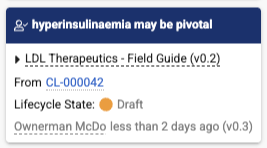
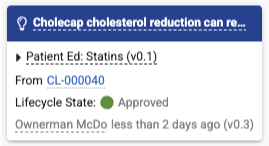
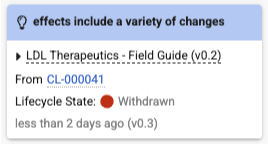
To view annotations on a document, click **View Annotations** (). Claim-based link annotations display different colored banners depending on how they were created.
Claim Link, Approved Link, Document Link, and Permanent Link annotations have a dark blue banner:
 Auto Link annotations have a blue banner:
 _Pending_ Suggested Link annotations have a light blue banner:
 Auto Link annotations have a gray banner when the _Claim_ record is _Withdrawn_:
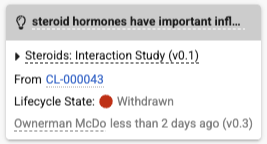 In addition, _Claim_-based link annotations display a colored circle to indicate the current lifecycle state of the associated _Claim_:
* Annotations for _Approved Claims_ display a green circle ().
* Annotations for _Withdrawn Claims_ display a red circle ().
* Annotations for _Claims_ in any other lifecycle state display an orange circle ().
## Removing Suggested Links
To undo the _Suggest Links_ actions and delete all Suggested Link and Auto Link annotations from a document:
1. Click the **View annotations** button to enter annotation mode.
2. Click the **Remove Suggested Links** button.
3. In the pop-up dialog, click **Continue**.
This action removes all Suggested Links and Auto-Accepted Links from a document, but does not prevent other users with the correct permissions from automatically or manually generating suggested links on the document in the future.
## Moving Brought-Forward Auto Links
You can [move](/en/lr/9777/#how-to-move) brought-forward Approved Links and Auto-Accepted Links by selecting **Move** from the annotation's **Actions** menu. When you move a brought-forward Auto Link, Vault converts the annotation to a manual claim link. You cannot move new Auto Links, only brought-forward Auto Links.
## Filtering by Link Type
From the **Filter** menu, you can select which kinds of annotations Vault displays:
* Select **Auto-Accepted Links** to see only links automatically generated by Vault. This includes Approved Links and Auto-Accepted Links.
* Select **Suggested Links** to see only Suggested Links in _Pending_ status.
* Select **Manual Links** to show only links created manually. This includes [Document Links](/en/lr/15303/#link-to-whole-doc) and claim links.
## Viewing the Where Used Component On Text Asset Records
The _Where Used_ section of a _Text Asset_'s record detail page lists all document versions where Vault has generated suggested links or Auto-Accepted Links for that _Text Asset_, or where users have added Claim Links manually. Vault lists each document version once. If multiple versions of the same document have links for a _Text Asset_, Vault lists each version in its own row.
The _Where Used_ component includes the following columns:
* **Name**: The name and version of the document where the _Text Asset_ is used. Hover over the name for more information or click to navigate to the document version.
* **Number**: The document number of the document where the _Text Asset_ is used.
* **Status**: The lifecycle state of the document where the _Text Asset_ is used.
* **Suggested**: The total number of Suggested Links, including _Pending_, _Accepted_, and _Rejected_ links. This column does not include links deleted with the _Remove Suggested Links_ action.
* **Pending**: The total number of Suggested Links in _Pending_ status.
* **Accepted**: The total number of Suggested Links in _Accepted_ status.
* **Rejected**: The total number of Suggested Links in _Rejected_ status.
* **Manual**: The total number of Claim Links added manually.
* **Auto**: The total number of Auto-Accepted Links.
* **Last Used**: The timestamp when a link was most recently created or accepted on the document. This includes Suggested, Auto, and Claim Links.
By default, Vault sorts documents by the most recently used. You can set a different sort order by clicking the header of any column. Select **Edit Columns** from the **Actions** menu to add, remove, or reorder columns.
## Limitations
Text and claims management has the following limitations:
* Vault cannot create Suggested Links on non-text content.
* Suggested Links in _Pending_ status cannot find _Match Text_ that spans across multiple pages.
* Suggested Links in _Pending_ status do not appear in _PDF With Annotations_ or _Export Annotations_ downloads.
* Users cannot download Suggested Links in _Pending_ status with the _Download Notes_ action.
* Users cannot run the _Suggest Links_ user action or accept pending links on archived documents, but they can remove pending links.
* Vault does not bring forward Suggested Links in _Pending_ status.
* When you use the [_Make a Copy_](/en/lr/3591/) action on a document with pending Suggested Links, Approved Links, or Auto-Accepted Links, Vault does not copy these annotations to the new document. Manually created document links, permalinks, and Claim Links are copied to the new document.
* Vault does not suggest non-exact matches on documents beyond the 50,000th character.
* Vault may create duplicate link annotations for the same text on the document if the underlying text is duplicated and positioned almost identically. The duplicate text may be difficult to see due to nearly overlapping.
## Related Permissions
The following permissions control functionality related to Text and Claims Management:
| Type | Permission Label | Controls |
| --- | --- | --- |
| Security Profile | Objects: Text Asset: Create, Edit, Delete | Ability to create, edit, and delete claims, including references |
| Security Profile | Objects: Text Asset Target: Create, Edit, Delete | Ability to see and add suggested links |
| Security Profile | Objects: Link Target: Create, Edit, Delete | Ability to see and add suggested links |
| Security Profile | Objects: Link Target: Create, Edit, Delete | Ability to see and use the _Remove Suggested Links_ action |
| Security Profile | Objects: Link Target: Object Action Permissions: Preview: View, Execute | Ability to see and use the _Preview_ action to view the list of existing targets on a reference. The _Business Administrator Actions_, _System Administrator Actions_, and _Vault Owner Actions_ standard permission sets include these permissions, but they must be added to custom permission sets. |
| Security Profile | Objects: Link Target: Object Action Permissions: Remove: View, Execute | Ability to see and use the _Remove_ action to remove a reference document from a _Claim_. The _Business Administrator Actions_, _System Administrator Actions_, and _Vault Owner Actions_ standard permission sets include these permissions, but they must be added to custom permission sets. |
| Document Role | Annotate | Ability to perform the enhanced _Suggest Links_ action. Ability to move brought-forward Approved Links and Auto-Accepted Links. |
| Document Role | Edit Relationship | Ability to perform the enhanced _Suggest Links_ action. |
| Lifecycle State | View Content | Ability to accept or reject a Suggested Link. The user must have the _View Document_ permission to accept a Suggested Link that references a document, and _View Content_ to accept a Link that references an anchor within a document. |
In addition, _Claim_-based link annotations display a colored circle to indicate the current lifecycle state of the associated _Claim_:
* Annotations for _Approved Claims_ display a green circle ().
* Annotations for _Withdrawn Claims_ display a red circle ().
* Annotations for _Claims_ in any other lifecycle state display an orange circle ().
## Removing Suggested Links
To undo the _Suggest Links_ actions and delete all Suggested Link and Auto Link annotations from a document:
1. Click the **View annotations** button to enter annotation mode.
2. Click the **Remove Suggested Links** button.
3. In the pop-up dialog, click **Continue**.
This action removes all Suggested Links and Auto-Accepted Links from a document, but does not prevent other users with the correct permissions from automatically or manually generating suggested links on the document in the future.
## Moving Brought-Forward Auto Links
You can [move](/en/lr/9777/#how-to-move) brought-forward Approved Links and Auto-Accepted Links by selecting **Move** from the annotation's **Actions** menu. When you move a brought-forward Auto Link, Vault converts the annotation to a manual claim link. You cannot move new Auto Links, only brought-forward Auto Links.
## Filtering by Link Type
From the **Filter** menu, you can select which kinds of annotations Vault displays:
* Select **Auto-Accepted Links** to see only links automatically generated by Vault. This includes Approved Links and Auto-Accepted Links.
* Select **Suggested Links** to see only Suggested Links in _Pending_ status.
* Select **Manual Links** to show only links created manually. This includes [Document Links](/en/lr/15303/#link-to-whole-doc) and claim links.
## Viewing the Where Used Component On Text Asset Records
The _Where Used_ section of a _Text Asset_'s record detail page lists all document versions where Vault has generated suggested links or Auto-Accepted Links for that _Text Asset_, or where users have added Claim Links manually. Vault lists each document version once. If multiple versions of the same document have links for a _Text Asset_, Vault lists each version in its own row.
The _Where Used_ component includes the following columns:
* **Name**: The name and version of the document where the _Text Asset_ is used. Hover over the name for more information or click to navigate to the document version.
* **Number**: The document number of the document where the _Text Asset_ is used.
* **Status**: The lifecycle state of the document where the _Text Asset_ is used.
* **Suggested**: The total number of Suggested Links, including _Pending_, _Accepted_, and _Rejected_ links. This column does not include links deleted with the _Remove Suggested Links_ action.
* **Pending**: The total number of Suggested Links in _Pending_ status.
* **Accepted**: The total number of Suggested Links in _Accepted_ status.
* **Rejected**: The total number of Suggested Links in _Rejected_ status.
* **Manual**: The total number of Claim Links added manually.
* **Auto**: The total number of Auto-Accepted Links.
* **Last Used**: The timestamp when a link was most recently created or accepted on the document. This includes Suggested, Auto, and Claim Links.
By default, Vault sorts documents by the most recently used. You can set a different sort order by clicking the header of any column. Select **Edit Columns** from the **Actions** menu to add, remove, or reorder columns.
## Limitations
Text and claims management has the following limitations:
* Vault cannot create Suggested Links on non-text content.
* Suggested Links in _Pending_ status cannot find _Match Text_ that spans across multiple pages.
* Suggested Links in _Pending_ status do not appear in _PDF With Annotations_ or _Export Annotations_ downloads.
* Users cannot download Suggested Links in _Pending_ status with the _Download Notes_ action.
* Users cannot run the _Suggest Links_ user action or accept pending links on archived documents, but they can remove pending links.
* Vault does not bring forward Suggested Links in _Pending_ status.
* When you use the [_Make a Copy_](/en/lr/3591/) action on a document with pending Suggested Links, Approved Links, or Auto-Accepted Links, Vault does not copy these annotations to the new document. Manually created document links, permalinks, and Claim Links are copied to the new document.
* Vault does not suggest non-exact matches on documents beyond the 50,000th character.
* Vault may create duplicate link annotations for the same text on the document if the underlying text is duplicated and positioned almost identically. The duplicate text may be difficult to see due to nearly overlapping.
## Related Permissions
The following permissions control functionality related to Text and Claims Management:
| Type | Permission Label | Controls |
| --- | --- | --- |
| Security Profile | Objects: Text Asset: Create, Edit, Delete | Ability to create, edit, and delete claims, including references |
| Security Profile | Objects: Text Asset Target: Create, Edit, Delete | Ability to see and add suggested links |
| Security Profile | Objects: Link Target: Create, Edit, Delete | Ability to see and add suggested links |
| Security Profile | Objects: Link Target: Create, Edit, Delete | Ability to see and use the _Remove Suggested Links_ action |
| Security Profile | Objects: Link Target: Object Action Permissions: Preview: View, Execute | Ability to see and use the _Preview_ action to view the list of existing targets on a reference. The _Business Administrator Actions_, _System Administrator Actions_, and _Vault Owner Actions_ standard permission sets include these permissions, but they must be added to custom permission sets. |
| Security Profile | Objects: Link Target: Object Action Permissions: Remove: View, Execute | Ability to see and use the _Remove_ action to remove a reference document from a _Claim_. The _Business Administrator Actions_, _System Administrator Actions_, and _Vault Owner Actions_ standard permission sets include these permissions, but they must be added to custom permission sets. |
| Document Role | Annotate | Ability to perform the enhanced _Suggest Links_ action. Ability to move brought-forward Approved Links and Auto-Accepted Links. |
| Document Role | Edit Relationship | Ability to perform the enhanced _Suggest Links_ action. |
| Lifecycle State | View Content | Ability to accept or reject a Suggested Link. The user must have the _View Document_ permission to accept a Suggested Link that references a document, and _View Content_ to accept a Link that references an anchor within a document. |