# About Automated Image Tagging

Veeva PromoMats supports automated image tagging by processing uploaded image content through the <a class="external-link " href="https://docs.aws.amazon.com/rekognition/" target="_blank" rel="noopener">AWS Rekognition service<i class="fa fa-external-link" aria-hidden="true"></i></a>. The Automated Image Tagging process populates Vault document metadata fields based on predefined tags. Automated image tagging is critical in supporting process efficiencies and standardizing image tags, making it easier for you to find digital assets through improved searchability.

Two Amazon Rekognition services support automated image tagging in Vault: <a class="external-link " href="https://docs.aws.amazon.com/rekognition/latest/dg/labels.html" target="_blank" rel="noopener">DetectLabels<i class="fa fa-external-link" aria-hidden="true"></i></a> and <a class="external-link " href="https://docs.aws.amazon.com/rekognition/latest/dg/faces.html" target="_blank" rel="noopener">Facial Attributes<i class="fa fa-external-link" aria-hidden="true"></i></a>.

You can apply automated image tagging to most non-audio and non-video viewable renditions. You can submit up to 250,000 tagging requests per month.

## Using Automated Image Tagging

Vault initiates automated image tagging when users:

  * Upload new documents
  * Re-render documents
  * Create a new version
  * Upload a manual viewable rendition

Vault automatically begins tagging images asynchronously once a viewable rendition becomes available on a document. Users can continue to work in Vault while this process continues.

Vault logs automated image tagging on behalf of the System in [audit trails](/en/lr/517/).

### Supported File Types

Vault supports the following file formats for automated image tagging:

| Format Name | Extensions |
| --- | --- |
| Image | \*.avif, \*.bmp, \*.eps, \*.heic, \*.heif, \*.jpeg, \*.jpg, \*.png, \*.psd, \*.svg, \*.tif, \*.tiff, \*.webp |
| Adobe Creative Cloud | \*.ai, \*.indd, \*.psd, \*.zip (InDesign package) |
| Powerpoint Presentation | \*.ppt, \*.pptx |
| PDFs | \*.pdf |
| HyperText Markup Language | \*.htm, \*.html |

### Tagging Request Limits

By default, you can submit up to 250,000 tagging requests in a single Vault per month. Each page in a document is two (2) requests if both services are being used.

## Configuring Automated Image Tagging

You must complete the following steps to configure and enable automated image tagging:

  1. Review image tags. See [details about this step][1] below.
  2. Assign _Document Type Groups_ to document types. See [details about this step][2] below.
  3. Add the _Image Tags_ (`image_tag__v`) document field to document types. See [details about this step][3] below.
  4. Activate the connection record. See [details about this step][4] below.

###  Reviewing Image Tags {#review-tags}

The _Image Tag_ (`image_tag__v`) object is pre-populated with supported tags from AWS Rekognition's DetectLabels and Facial Attributes services. By default, a subset of tags from these services are _Active_ in your Vault. To view _Image Tags_, navigate to **Business Admin > Objects > Image Tags**.

We strongly recommend reviewing the tag list to determine if the active tags are appropriate for your organization. If not, you can activate or inactivate tags to suit your needs.

_Image Tags_ are current as of April 2024.

<div class="note-border alert-info">
  <div class="alert alert-info" role="alert">
    <div><i class="far fa-info-circle"></i></div>
    <div class="alert-text">
      <p><strong>Note</strong>: We recommend inactivating unwanted <em>Image Tags</em> and advise against deleting them.</p>
    </div>
  </div>
</div>


#### Customizing Image Tag Names

You can also edit _Image Tags_ to change tag names applied to documents when AWS Rekognition successfully identifies content.

To change an _Image Tag_ name:
  1. Navigate to **Business Admin > Objects > Image Tags**.
  2. Click a tag.
  3. Click **Edit**.
  4. Update the **Name** field.
  5. Click **Save**.

For example, Tara wants to change the tag _Baby_ to _Infant_ in her Vault to match the term her end users are most likely to use when searching for relevant content. After she changes the _Baby_ tag name to _Infant_, Vault updates all existing documents with the _Infant_ tag.

When users search for content, Vault uses both the _Name_ and _Tag_ field.

<div class="note-border alert-info">
  <div class="alert alert-info" role="alert">
    <div><i class="far fa-info-circle"></i></div>
    <div class="alert-text">
      <p><strong>Note</strong>: We strongly advise against changing the <em>Tag</em> (<code class="language-plaintext highlighter-rouge">tag__v</code>) field. This field relates to the AWS Rekognition library.</p>
    </div>
  </div>
</div>


#### Using Tag Phrases

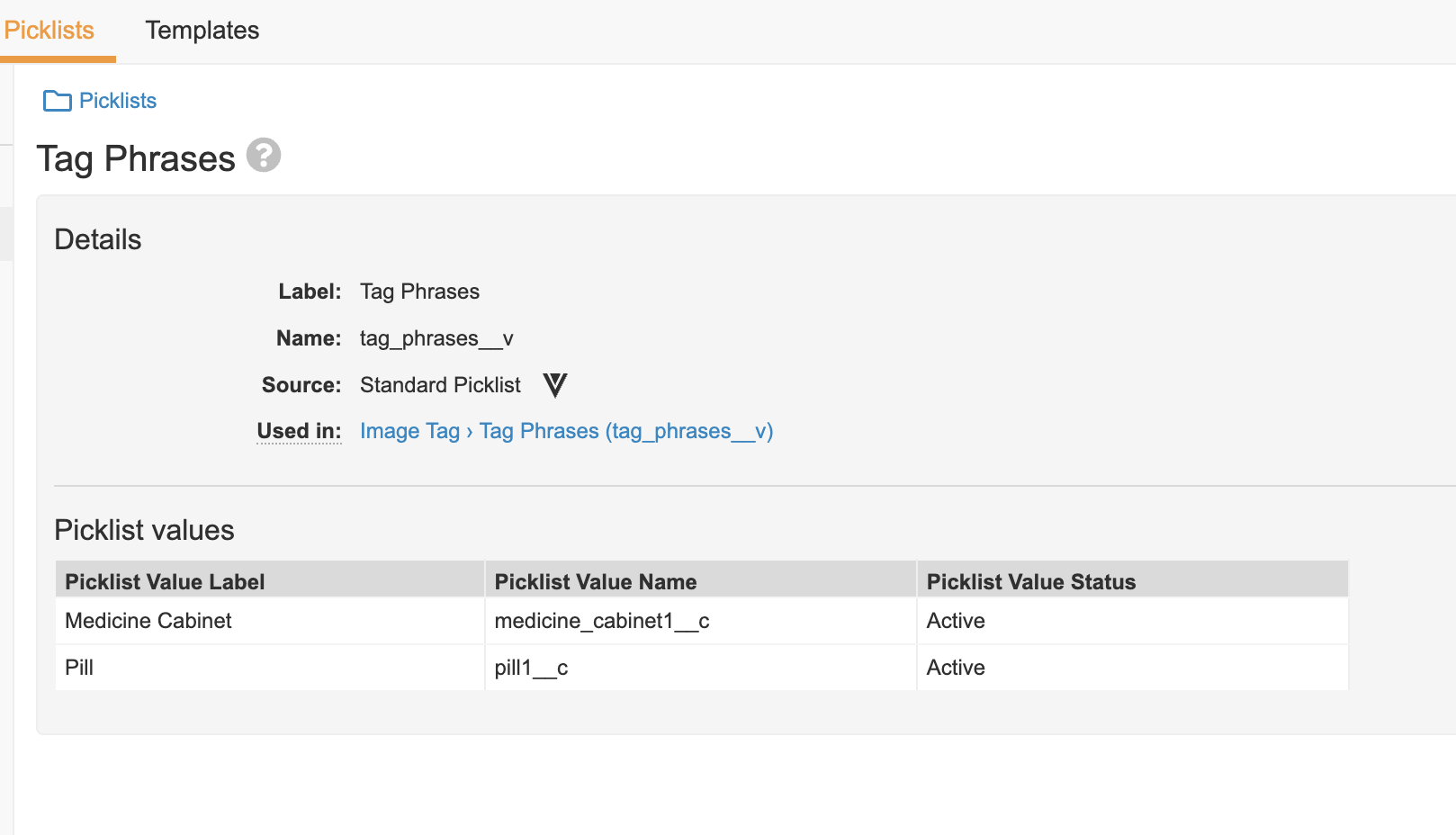
_Tag Phrases_ allow you to group multiple tags. For example, you can group the _Pill_ and _Medicine Cabinet_ tags using the _Medicatio_n tag phrase.

To configure a _Tag Phrase_:

  1. Navigate to **Business Admin > Objects > Image Tags**.
  2. Inactivate the tags you want to group using a _Tag Phrase_.
  3. Navigate to **Business Admin > Picklists > Tag Phrases**, and add the tags that you inactivated.
  4. Return to **Business Admin > Objects > Image Tags** and click the desired **Image Tag**.
  5. Update the **Tag Phrases** on this record to include the additional picklist values.

<a href="https://platform.veevavault.help/assets/images/Automated_Image_Tagging_Tag_Phrases_23r34.png" data-lightbox="Automated_Image_Tagging_Tag_Phrases_23r34.png" data-title="" data-alt="Tag Phrases">
  <img class="docimage" src="https://platform.veevavault.help/assets/images/Automated_Image_Tagging_Tag_Phrases_23r34.png" alt="Tag Phrases" style="max-width: 40%;"  />
</a>

###  Adding Document Types to Groups {#document-types}

To assign document types which will be sent for automated image tagging, you must assign a Document Type Group to the document types:

  1. Navigate to **Admin > Configuration > Document Types**.
  2. Next to your desired document type, click the **Actions** menu and select **Edit Details**.
  3. Under _Document Type Groups_, add **Automated Image Tagging**.
  4. Click **Save**.
  5. Optional: Repeat steps 1 - 4 for other document types.

<div class="note-border alert-info">
  <div class="alert alert-info" role="alert">
    <div><i class="far fa-info-circle"></i></div>
    <div class="alert-text">
      <p><strong>Note</strong>: The Automated Tagging service blocklists the following document types: <em>Base</em> (<code class="language-plaintext highlighter-rouge">base_document__v</code>), <em>eCTD Submission Ready Documents</em> (<code class="language-plaintext highlighter-rouge">ectd_submission_ready_documents__v</code>), <em>Supporting Documents</em> (<code class="language-plaintext highlighter-rouge">supporting_documents__v</code>), and <em>Health Authority Forms</em> (<code class="language-plaintext highlighter-rouge">health_authority_forms__v</code>).</p>
    </div>
  </div>
</div>


###  Updating Document Fields {#fields}

Then, you must add the _Image Tags_ (`image_tags__v`) field to these document types to see the field and tags in the [Doc Info pane](/en/lr/9753/):

  1. Navigate to **Admin > Configuration > Document Fields**.
  2. Click a document type.
  3. Click **Add** and select **Existing Shared Field**.
  4. Select the **Image Tags (image_tags__v)** field.
  5. Click **OK**.
  6. Optional: Repeat steps 1 - 5 for other document types.

Vault only tags content when the confidence threshold is at least 85%. If no tags meet this threshold, Vault does not add tags to the document and adds an entry to the audit trail.

###  Activating the Connection Record {#activation}

Finally, you must activate the _Automated Image Tagging_ connection record to enable the functionality.

To activate the connection record:

  1. Navigate to **Admin > Connections**.
  2. Click **Automated Image Tagging**.
  3. Click <i class="far fa-pencil-alt"></i>.
  4. Set the _Status_ to **Active**.
  5. Click **Save**.

At this point, any new content assigned to an applicable document type which meets the supported file formats will be sent for automated image tagging.

## Analyzing Image Tag Results

Vault creates an _Image Tagging Result_ (`image_tagging_result__v`) record for every page and document sent for automated image tagging. You can use these records to analyze which tags Vault filters from your documents based on its confidence threshold and determine if you should revisit your active and inactive tags.

_Image Tagging Result_ records include the following information:

  * The document and version sent for tagging
  * The page of the document analyzed
  * Rekognition service (Detect Labels, Facial Attributes, Facial Attributes - Age Range)
  * Raw AWS Rekognition results

Vault deletes _Image Tagging Result_ records after 90 days.

<div class="note-border alert-info">
  <div class="alert alert-info" role="alert">
    <div><i class="far fa-info-circle"></i></div>
    <div class="alert-text">
      <p><strong>Note</strong>: Due to Amazon’s best practices, Vault only logs results with a minimum confidence threshold of 55%.</p>
    </div>
  </div>
</div>


## Bulk Image Tagging

You can use a bulk action to send previously approved content for automated image tagging.

Before enabling the bulk action, you must add the **Integration** section to the **Automated Image Tagging** connection page layout:

  1. Navigate to **Admin > Connections > Automated Image Tagging**.
  2. Click the **Actions** menu and select **Configure Layout**.
  3. Click <i class="fas fa-plus-circle"></i> under an existing section and select **Insert Section**.
  4. Under _Select Section Type_, select **Related Object**.
  5. Click **Continue**.
  6. Under _Related Object_, select **Integration**.
  7. Optional: Configure additional section settings.
  8. Click Done.

You'll need to prepare a CSV file with **documentId**, **majorVersion**, and **minorVersion** columns. Vault can bulk process a maximum of 1,000 documents for automated image tagging. To generate this CSV file, navigate to your **Library** and open [**Grid** view](/en/lr/1745/). Add the columns, then export your layout to CSV.

To enable the bulk action:

  1. Navigate to **Connections > Automated Image Tagging**.
  2. Click **Integration**.
  3. Click the **Actions** menu and select **Bulk Automated Image Tagging**.
  4. Upload the CSV file.
  5. Run the action.

<div class="note-border alert-info">
  <div class="alert alert-info" role="alert">
    <div><i class="far fa-info-circle"></i></div>
    <div class="alert-text">
      <p><strong>Note</strong>: You cannot perform the <strong>Bulk Automated Image Tagging</strong> action in the Mozilla Firefox browser due to the browser’s restrictions.</p>
    </div>
  </div>
</div>


Once the bulk action completes, open one of the documents sent for tagging to verify that documents in the CSV file were processed.

## Troubleshooting User Exception Messages

Vault includes the _User Exception Message_ object and its child object, _User Exception Item_, to help you track and resolve any errors that occur with a connection. If Vault encounters an error during the automated image tagging process, it creates a _User Exception Message_ record to capture the failure.

You can view and manage these messages from **Admin > Connections > User Exception Messages**. If you want specific users or groups to receive notifications when Vault creates _User Exception Message_ records, you can create a custom lifecycle for the _User Exception Message_ object and configure a [notification entry action](/en/lr/59885/#entry-actions).

The table below outlines automated image tagging exception messages.

| Exception Name | Error Message | Troubleshooting |
| --- | --- | --- |
| Automated Image Tagging - ITEM_PROCESSING_ERROR | Automated Image Tagging, monthly service limit exceeded. Document not sent for Automated Image Tagging - (docID_majorversion_minorversion), X_X_X | You can resend the document(s) for tagging next month.<br>You can also contact Veeva Support to inquire about raising the service limit. |
| Automated Image Tagging - ITEM_PROCESSING_ERROR | Unsupported Document Type sent for Automated Image Tagging  - (docID_majorversion_minorversion), X_X_X | See [Adding Document Types to Groups][2] above for information regarding blocklisted document types. |
| Automated Image Tagging - ITEM_PROCESSING_ERROR | Error occurred during Automated Image Tagging process | The service is temporarily unavailable. Please try again. If another error occurs, please contact Veeva Support. |
| Automated Image Tagging - ITEM_PROCESSING_ERROR | Document does not exist, could not send for Automated Image Tagging, (docID_majorversion_minorversion), X_X_X | Review the bulk tagging CSV file for document IDs and try again. |

## Related Permissions

You need a _System Admin_ security profile as well as the following permissions to configure automated image tagging:

| Type | Permission Label | Controls |
| --- | --- | --- |
| Security Profile | Admin: Application: Manage Connections | Ability to activate the _Automated Image Tagging_ connection record |
| Security Profile | Object: User Exception Item, User Exception Message: Read | Ability to see _User Exception Item_ and _User Exception Message_ records if an error occurs |


[1]: #review-tags
[2]: #document-types
[3]: #fields
[4]: #activation
