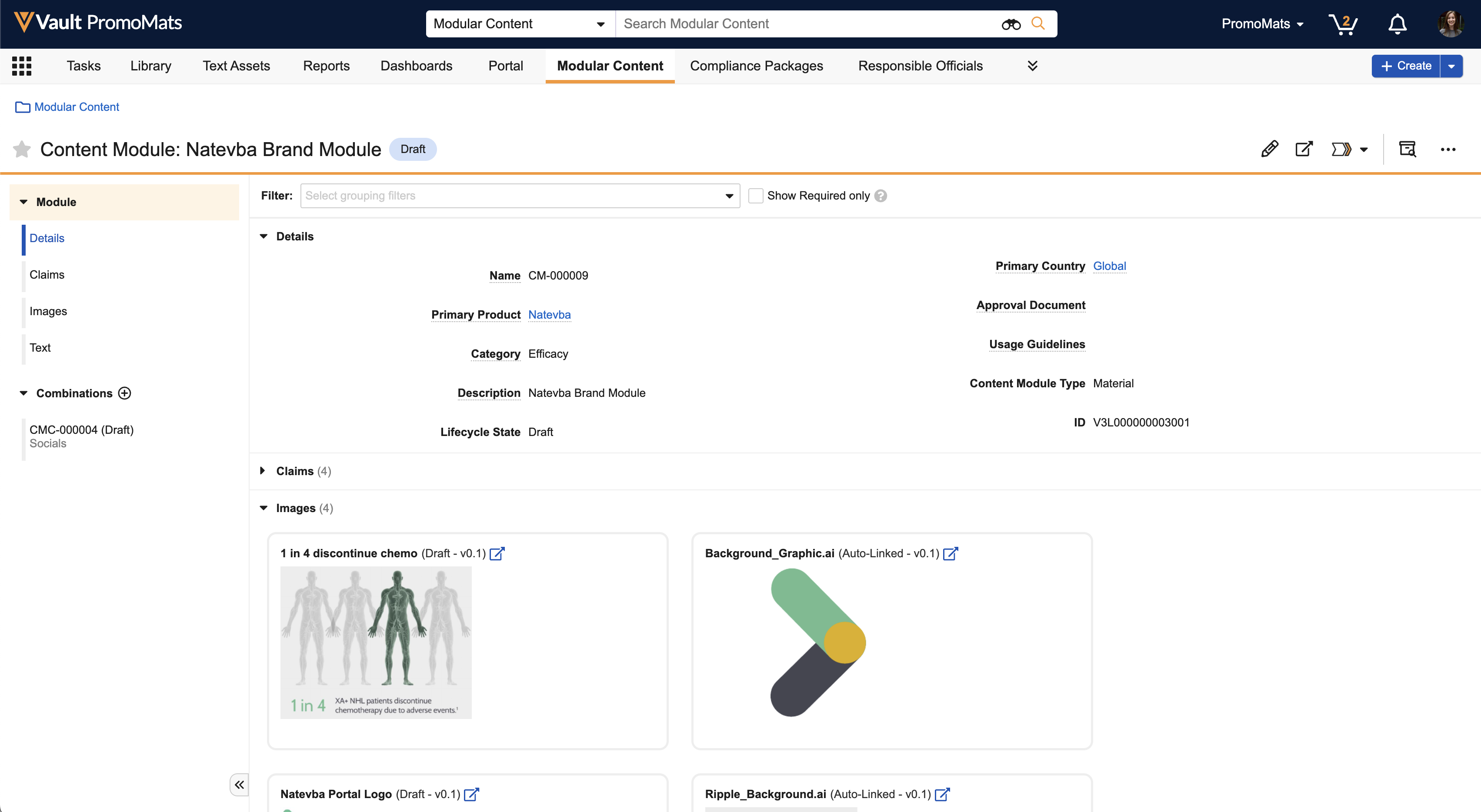
 Depending on how you manage your module library, you may want to include additional custom fields to help with organising and sorting, and include clear descriptions to make it easier for users to identify the correct modules within the library.
### Relating Content Modules
Using the join objects _Content Module Country_ and _Content Module Product_, you can relate _Content Modules_ to multiple products and countries. You can also relate modules using the [_Modular Content_ document panel][2].
You can optionally navigate to **Admin > Settings > Application Settings** and, under _Modular Content_, select the **Enable Content Module Country Join Object Record Creation SDK** and **Enable Content Module Product Join Object Record Creation SDK** checkboxes to enable automatic join record creation for the _Primary Country_ and _Primary Product_ values.
### Content Module Rulesets
Rulesets are collections of business _Rules_ that can be used across multiple _Content Modules_. To create a custom _Content Module Ruleset_, navigate to **Business Admin > Objects > Content Module Rulesets**.
### Creating Content Module Combinations
Using _Content Module Combinations_, you can group assets within _Content Modules_ for specific channels, messages, or personas.
To create a _Combination_ for a _Content Module_:
1. Open a _Content Module_.
2. Click next to **Combinations** in the panel to the left of the module.
3. Enter a **Description**.
4. Click **Continue**.
Once you create the _Combination_ record, you can begin adding _Assets_. By default, Vault selects all assets for inclusion. To manually select assets, clear the **Selected** checkbox and select any applicable assets. Click **Save** to finish editing the _Combination_. Vault creates _Combinations_ in the _Pending_ state.
You can view _Combinations_ by opening the panel and clicking the _Combination_ name in the list. While viewing a _Combination_, you can click to edit the _Combination_ or to delete the record.
To open non- _Pending_ state _Combination_ records in a mini-browser window, click . From there, you can edit the record and move the _Combination_ through the _Content Module Combinations Lifecycle_.
_Combinations_ are also used as a part of the [CRM Email builder](/en/lr/689127/).
### Making Local Copies
You can automate the generation of local _Content Modules_, allowing you to review and remove _Content Module Assets_ before generating a new copy. Vault supports local copies on the _Base_ and _Material_ types of the _Content Module_ object.
First, you'll need to download a controlled vocabulary configuration file and load it into your Vault using [Vault Loader](/en/lr/26607/). You can download the CSV file here. Vault uses these records to automatically populate the _Reason for Copy_ field on _Text Asset_ records and _Content Modules_ generated using the _Make a Local Copy_ action.
Next, you must update [page layouts](/en/lr/26387/) for the _Text Asset_ and _Content Module_ objects to ensure Vault populates the _Reason for Copy_ field:
1. Navigate to **Admin > Configuration > Objects > Text Asset > Layouts**.
2. Click the **Claim Detail** page layout.
3. Click **Add** in the _Details_ section and select the **Reason for Copy** field.
4. Click **Save**.
5. Repeat steps 1 through 4 to add the **Reason for Copy** field to the **Reusable Text** object type page layout. You may first need to create the layout.
6. Navigate to **Admin > Configuration > Objects > Content Module > Layouts**.
7. Add the **Reason for Copy**, **Language**, and **Source Content Module** fields to the page layouts for all object types. You may first need to create the layouts.
Then, you must configure the **Make a Local Copy** user action:
1. Navigate to **Admin > Configuration > Object Lifecycles > Content Module Lifecycle**.
2. Click the state you want to configure the user action on.
3. Under _User Actions_, click **Create**.
4. Select **Always** and **Make a Local Copy**.
5. Enter an **Action Label**.
6. Click **Save**.
7. Review [user permission sets][1] to ensure users can perform this action.
We recommend that you review your _Claims_ library for any records copied for localization purposes and add a _Reason for Copy_.
Once configured, you can perform the **Make a Local Copy** action on any _Content Module_. Next, you must select the target market values for **Primary Product**, **Primary Country**, and **Language** in the _Create local copy_ dialog.
Vault displays different information in the _Create local copy_ dialog depending on whether your Vault contains active _Content Module Country_ and _Content Module Product_ records:
* If there are no active _Content Module Country_ or _Content Module Product_ records, the dialog includes prompts for _Primary Product, Primary Country_, and _Language_.
* If there are active _Content Module Country_ records and no active _Content Module Product_ records, the dialog includes prompts for _Primary Product_, _Primary Country_, _Language_, and _Additional Countries_.
* If there are no active _Content Module Country_ records and active _Content Module Product_ records, the dialog includes prompts for _Primary Product, Primary Country_, _Language_, and _Additional Product_.
_Primary Product_ and _Primary Country_ are required fields in all three dialogs.
On the _Make a Local Copy_ page, Vault provides different recommendations between the _Make a Local Copy_, _Use as is_, _Exclude_, and _Keep_ options depending on the asset type.
| Action | Behavior | Types |
| -- | -- | -- |
| Make a Local Copy | Vault creates a new record based on the original asset in the _Content Module_.
Depending on how you manage your module library, you may want to include additional custom fields to help with organising and sorting, and include clear descriptions to make it easier for users to identify the correct modules within the library.
### Relating Content Modules
Using the join objects _Content Module Country_ and _Content Module Product_, you can relate _Content Modules_ to multiple products and countries. You can also relate modules using the [_Modular Content_ document panel][2].
You can optionally navigate to **Admin > Settings > Application Settings** and, under _Modular Content_, select the **Enable Content Module Country Join Object Record Creation SDK** and **Enable Content Module Product Join Object Record Creation SDK** checkboxes to enable automatic join record creation for the _Primary Country_ and _Primary Product_ values.
### Content Module Rulesets
Rulesets are collections of business _Rules_ that can be used across multiple _Content Modules_. To create a custom _Content Module Ruleset_, navigate to **Business Admin > Objects > Content Module Rulesets**.
### Creating Content Module Combinations
Using _Content Module Combinations_, you can group assets within _Content Modules_ for specific channels, messages, or personas.
To create a _Combination_ for a _Content Module_:
1. Open a _Content Module_.
2. Click next to **Combinations** in the panel to the left of the module.
3. Enter a **Description**.
4. Click **Continue**.
Once you create the _Combination_ record, you can begin adding _Assets_. By default, Vault selects all assets for inclusion. To manually select assets, clear the **Selected** checkbox and select any applicable assets. Click **Save** to finish editing the _Combination_. Vault creates _Combinations_ in the _Pending_ state.
You can view _Combinations_ by opening the panel and clicking the _Combination_ name in the list. While viewing a _Combination_, you can click to edit the _Combination_ or to delete the record.
To open non- _Pending_ state _Combination_ records in a mini-browser window, click . From there, you can edit the record and move the _Combination_ through the _Content Module Combinations Lifecycle_.
_Combinations_ are also used as a part of the [CRM Email builder](/en/lr/689127/).
### Making Local Copies
You can automate the generation of local _Content Modules_, allowing you to review and remove _Content Module Assets_ before generating a new copy. Vault supports local copies on the _Base_ and _Material_ types of the _Content Module_ object.
First, you'll need to download a controlled vocabulary configuration file and load it into your Vault using [Vault Loader](/en/lr/26607/). You can download the CSV file here. Vault uses these records to automatically populate the _Reason for Copy_ field on _Text Asset_ records and _Content Modules_ generated using the _Make a Local Copy_ action.
Next, you must update [page layouts](/en/lr/26387/) for the _Text Asset_ and _Content Module_ objects to ensure Vault populates the _Reason for Copy_ field:
1. Navigate to **Admin > Configuration > Objects > Text Asset > Layouts**.
2. Click the **Claim Detail** page layout.
3. Click **Add** in the _Details_ section and select the **Reason for Copy** field.
4. Click **Save**.
5. Repeat steps 1 through 4 to add the **Reason for Copy** field to the **Reusable Text** object type page layout. You may first need to create the layout.
6. Navigate to **Admin > Configuration > Objects > Content Module > Layouts**.
7. Add the **Reason for Copy**, **Language**, and **Source Content Module** fields to the page layouts for all object types. You may first need to create the layouts.
Then, you must configure the **Make a Local Copy** user action:
1. Navigate to **Admin > Configuration > Object Lifecycles > Content Module Lifecycle**.
2. Click the state you want to configure the user action on.
3. Under _User Actions_, click **Create**.
4. Select **Always** and **Make a Local Copy**.
5. Enter an **Action Label**.
6. Click **Save**.
7. Review [user permission sets][1] to ensure users can perform this action.
We recommend that you review your _Claims_ library for any records copied for localization purposes and add a _Reason for Copy_.
Once configured, you can perform the **Make a Local Copy** action on any _Content Module_. Next, you must select the target market values for **Primary Product**, **Primary Country**, and **Language** in the _Create local copy_ dialog.
Vault displays different information in the _Create local copy_ dialog depending on whether your Vault contains active _Content Module Country_ and _Content Module Product_ records:
* If there are no active _Content Module Country_ or _Content Module Product_ records, the dialog includes prompts for _Primary Product, Primary Country_, and _Language_.
* If there are active _Content Module Country_ records and no active _Content Module Product_ records, the dialog includes prompts for _Primary Product_, _Primary Country_, _Language_, and _Additional Countries_.
* If there are no active _Content Module Country_ records and active _Content Module Product_ records, the dialog includes prompts for _Primary Product, Primary Country_, _Language_, and _Additional Product_.
_Primary Product_ and _Primary Country_ are required fields in all three dialogs.
On the _Make a Local Copy_ page, Vault provides different recommendations between the _Make a Local Copy_, _Use as is_, _Exclude_, and _Keep_ options depending on the asset type.
| Action | Behavior | Types |
| -- | -- | -- |
| Make a Local Copy | Vault creates a new record based on the original asset in the _Content Module_. 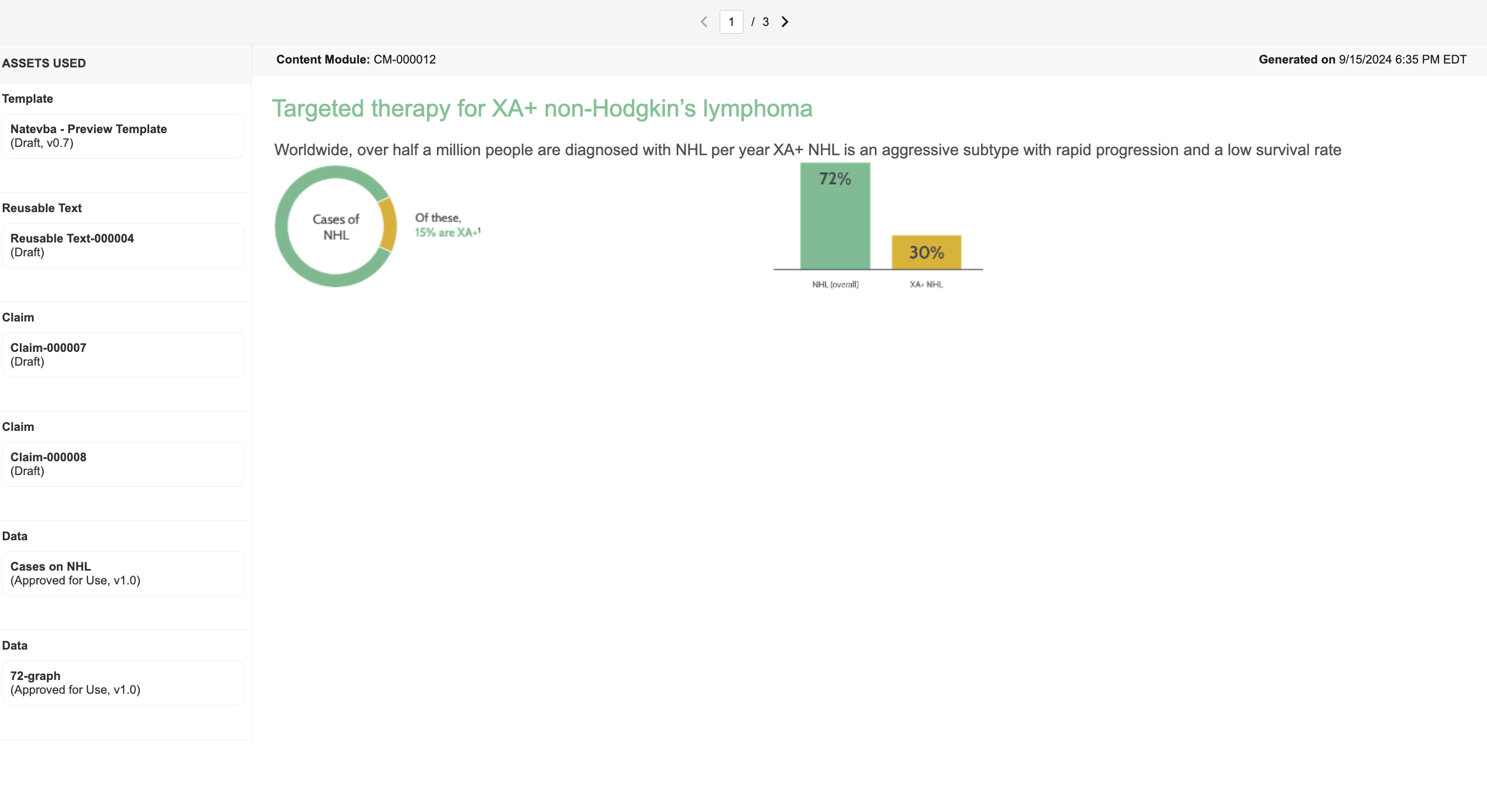 ### Managing Groupings
Groupings indicate how or where a _Content Module Asset_ is used and serve as a filter to easily locate _Assets_ within the _Content Module_ object record detail page. You can assign a grouping to an _Asset_ by entering **Edit** mode, opening the **Quick Look** panel of the _Asset_, and selecting the desired value from the **Grouping** picklist.
You can also [manage this picklist](/en/lr/1269/) by navigating to **Business Admin > Picklists > Content Module Asset Grouping**.
### Adding HTML Templates
To add a _Template_ asset to a _Content Module_, click **+ Template**. _Templates_ can be any document type, but they must be a .html, .htm, or .xhtml file. Vault automatically applies filters on the _Product_ and _Country_ fields in the _Select Template_ dialog.
You can also add multiple _Templates_ and select which one Vault uses to generate the preview when performing the _Generate Preview_ action.
Download a sample .html _Template_ here. This _Template_ uses a _Claim_ asset with grouping value of header, an _Image_ asset, and an additional _Claim_ asset tagged as a footer.
### Using Vault Tokens for HTML Previews
You must include Vault tokens within your HTML _Templates_ before generating an HTML preview. These tokens specify the _Content Module Asset Type_ to use, the [Rendition Type](/en/lr/3037/) (for document assets), and the specific grouping.
The token format for HTML _Templates_ is `{{ContentModuleAssettype.objecttype__v;rendition.rendition_type;grouping.grouping_type}}`. At a minimum, the token must specify the _Content Module Asset Type_, whose format is `{{ContentModuleAssettype.objecttype__v;}}`, while the rest is optional. You can only include one grouping per token. For example, a _Claim_ used with a header grouping would be `{{ContentModuleAssetType.claim__v;grouping.veeva_header__v;}}`. Each token added to the HTML _Template_ must be unique.
Before generating a preview, Vault validates against the following parameters:
| Issue | Expected Error Message |
| --- | --- |
| The template has no `{{ContentModuleAssetType.objecttype__v;}}` tokens. | Selected document is not supported. _Template_ does not include asset tokens. |
| A referenced `objecttype` in a token is invalid. Unsupported object types:
### Managing Groupings
Groupings indicate how or where a _Content Module Asset_ is used and serve as a filter to easily locate _Assets_ within the _Content Module_ object record detail page. You can assign a grouping to an _Asset_ by entering **Edit** mode, opening the **Quick Look** panel of the _Asset_, and selecting the desired value from the **Grouping** picklist.
You can also [manage this picklist](/en/lr/1269/) by navigating to **Business Admin > Picklists > Content Module Asset Grouping**.
### Adding HTML Templates
To add a _Template_ asset to a _Content Module_, click **+ Template**. _Templates_ can be any document type, but they must be a .html, .htm, or .xhtml file. Vault automatically applies filters on the _Product_ and _Country_ fields in the _Select Template_ dialog.
You can also add multiple _Templates_ and select which one Vault uses to generate the preview when performing the _Generate Preview_ action.
Download a sample .html _Template_ here. This _Template_ uses a _Claim_ asset with grouping value of header, an _Image_ asset, and an additional _Claim_ asset tagged as a footer.
### Using Vault Tokens for HTML Previews
You must include Vault tokens within your HTML _Templates_ before generating an HTML preview. These tokens specify the _Content Module Asset Type_ to use, the [Rendition Type](/en/lr/3037/) (for document assets), and the specific grouping.
The token format for HTML _Templates_ is `{{ContentModuleAssettype.objecttype__v;rendition.rendition_type;grouping.grouping_type}}`. At a minimum, the token must specify the _Content Module Asset Type_, whose format is `{{ContentModuleAssettype.objecttype__v;}}`, while the rest is optional. You can only include one grouping per token. For example, a _Claim_ used with a header grouping would be `{{ContentModuleAssetType.claim__v;grouping.veeva_header__v;}}`. Each token added to the HTML _Template_ must be unique.
Before generating a preview, Vault validates against the following parameters:
| Issue | Expected Error Message |
| --- | --- |
| The template has no `{{ContentModuleAssetType.objecttype__v;}}` tokens. | Selected document is not supported. _Template_ does not include asset tokens. |
| A referenced `objecttype` in a token is invalid. Unsupported object types: 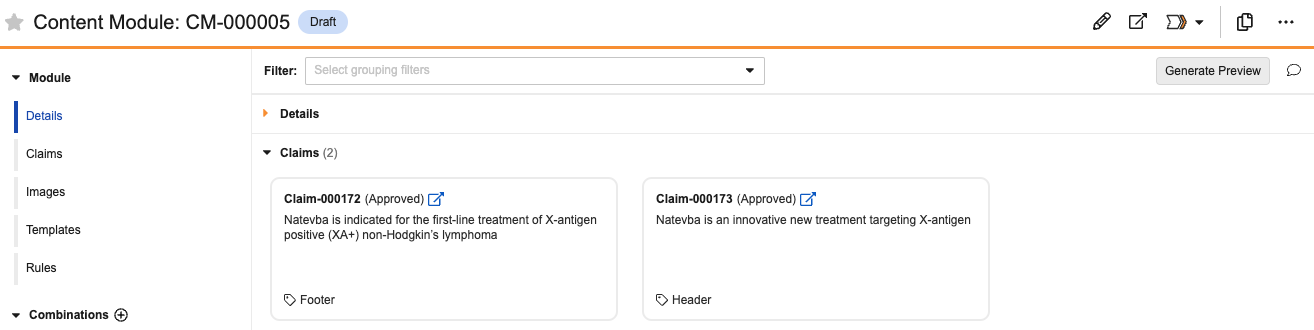 #### Limitations
The following limitations apply to comments on _Content Modules_:
* You cannot add more than 5,000 comments per _Content Module_.
* You can only add new comments while in _View_ mode.
* When delegates add comments, Vault displays their name rather than the delegate user's name.
* You can add a maximum of 50 user mentions to an individual comment or reply.
## Using the Modular Content Panel {#panel}
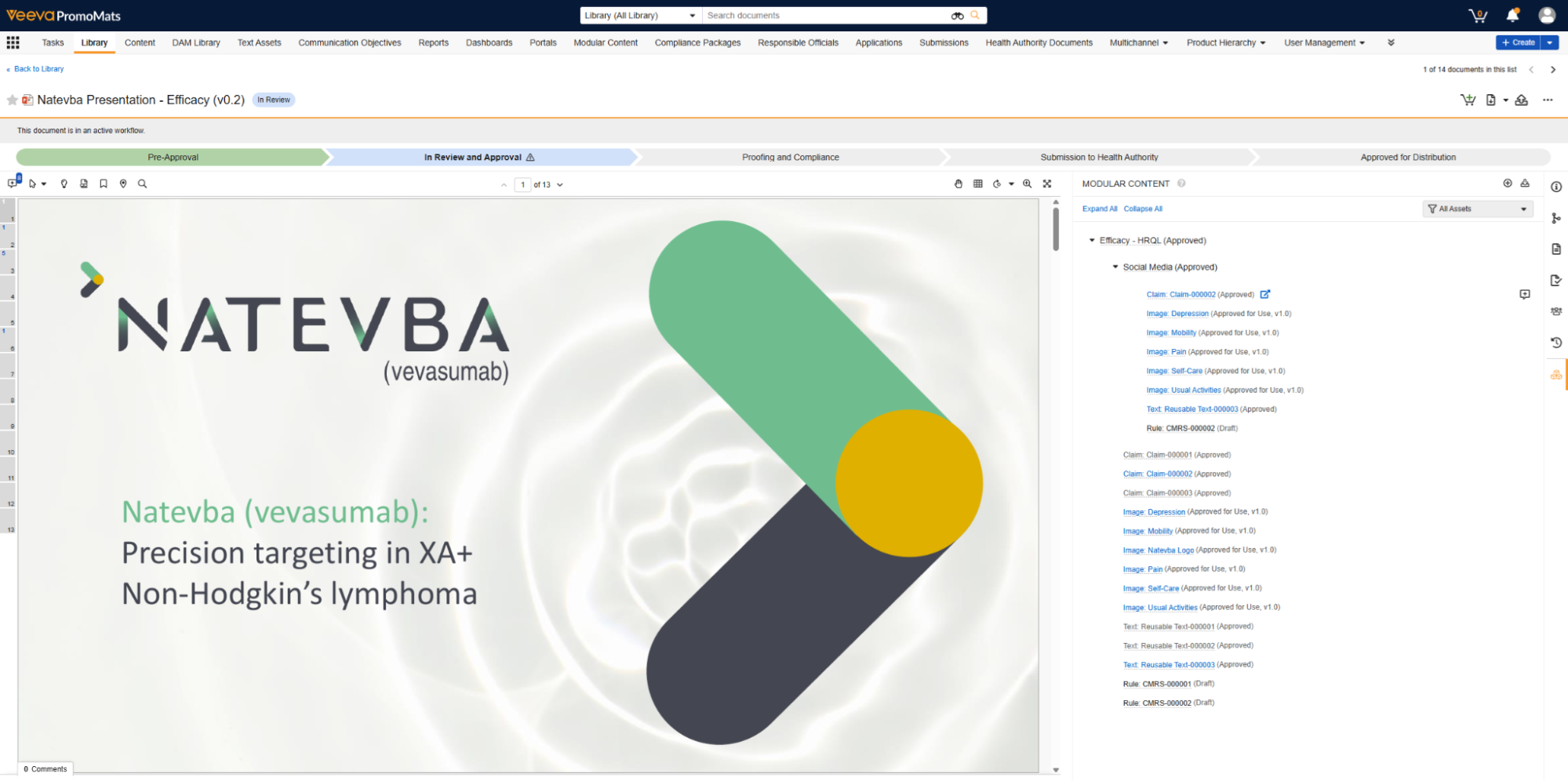
The _Modular Content_ [document panel](/en/lr/9753/#doc-info-panels) displays _Content Modules_ of the _Material_ type related to a document, including _Content Module Assets_ and _Content Module Combinations_. The panel lets users link _Content Module Assets_ to specific elements within the document and add or remove _Content Module Combinations_ to _Content Modules_ for display. Click to open the Modular Content document panel, and click to apply a **Filter**. You can also navigate the _Modular Content_ panel using the **Tab** key.
#### Limitations
The following limitations apply to comments on _Content Modules_:
* You cannot add more than 5,000 comments per _Content Module_.
* You can only add new comments while in _View_ mode.
* When delegates add comments, Vault displays their name rather than the delegate user's name.
* You can add a maximum of 50 user mentions to an individual comment or reply.
## Using the Modular Content Panel {#panel}
The _Modular Content_ [document panel](/en/lr/9753/#doc-info-panels) displays _Content Modules_ of the _Material_ type related to a document, including _Content Module Assets_ and _Content Module Combinations_. The panel lets users link _Content Module Assets_ to specific elements within the document and add or remove _Content Module Combinations_ to _Content Modules_ for display. Click to open the Modular Content document panel, and click to apply a **Filter**. You can also navigate the _Modular Content_ panel using the **Tab** key.
Note: Vault only displays the Modular Content panel on documents using the Source Content Module field.
 next to the asset in the panel.
When a _Content Module Asset_ is linked to multiple matches, Vault displays a square number icon next to the asset in the _Modular Content_ panel. The icon represents the number of annotations linked to the asset to a maximum of five. You can click the asset link or the icon to open _Annotate_ mode and view the asset matches.
Vault displays the icon when a _Content Module Asset_ is linked to a pending Suggested Link annotation. You can click the asset link or icon to enter _Annotate_ mode and navigate to the pending Suggested Link annotation. Accepting the Suggested Link annotation removes the icon next to the _Content Module Asset_. If you reject the Suggested Link annotation, Vault removes the icon and displays an inactive asset link.
If a _Content Module Asset_ is linked to multiple annotations and at least one annotation is a pending Suggested Link, Vault displays the icon. You can click the icon or the _Content Module Asset_ to open a modal and enter _Annotate_ mode. From there, you can navigate to the annotations. Accepting the pending Suggested Link converts the icon to the standard multiple link icon upon refresh. You can view up to five asset matches. Rejecting the Suggested Link annotation will convert the icon to a multiple icon upon refresh.
### Adding & Viewing Content Module Combinations
The panel also can display _Content Module Combinations_ added to _Content Modules_.
To add a _Content Module Combination_, click the **plus** (**+**) icon next to each Content Module in the _Modular Content_ panel. Then, you can search for and select from existing _Content Module Combinations_ in the search dialog to add or remove combinations from a _Content Module_. Vault filters the list by default to display only the _Content Module Combinations_ available for the associated _Content Module_.
Once you add a _Content Module Combination_, Vault also automatically adds the name of the combination to the _Content Module Combination_ document field available in the _Information_ section. You can also update the combination in this document field from _Edit_ mode in the _Information_ section. To enable this document field, ensure that the _Content Module Combination_ document field is active and added to the _Document Type_ of the document. Updating the document field in the _Information_ section also adds the combination to the associated _Content Module_ in the _Modular Content_ panel.
You can expand a _Content Module_ to review the associated _Content Module Combination_ and the _Content Module Assets_ listed in the combination. If you hover over the name of the _Content Module Combination_, Vault displays a hovercard with the details of the combination. Hovering to the right of the combination displays a link that opens the _Content Module_ record in a mini-viewer window with the combination selected by default.
Vault also displays _Content Module Assets_ active links in blue text and inactive links in gray under the expanded _Content Module Combination_. You can hover over an active asset link to view the hovercard. Vault displays document-linked assets with the thumbnail of the document in the hovercard. Clicking an active link opens licking an active link opens [_Annotate_ mode](/en/lr/9753/#annotate) and jumps to the link's location in the document.
### Adding Asset Links
If Vault cannot identify an _Asset_, you can click to manually add a link to a document or _Text Asset_, then select an area on the document to create a manual link annotation to the _Text Asset_ or document identified in the _Content Module Asset_. You can also add a link to an image asset. The link type depends on the _Content Module Asset Type_.
### Rules
_Content Module Rulesets_ are grouped with other _Content Module Assets_ in the _Modular Content_ panel. Unlike other assets, you cannot link _Rulesets_ to anything within the document.
## Downloading Content Modules
In the _Modular Content_ document panel, click to download _Content Modules_ in a ZIP file. You can also enable the **Download Content Modules** action on one or more states in the _Content Module Lifecycle_ and perform this action on individual _Content Module_ records. You may need to update _Content Module_ object permissions to allow users to download individual _Content Module_ records. Vault notifies you when the _Content Modules_ are available to download. The process may take several minutes to complete.
When you download _Content Modules_, Vault generates a read-only Excel file containing the _Content Module_ manifest. Each _Content Module_ in the export has its own tab in the spreadsheet. These tabs contain all standard and system-managed fields on the _Content Modules_, such as _Products_, _Countries_, and _Content Module Assets_.
You cannot download _Content Modules_ if the total ZIP file size exceeds 100 GB in size.
If you do not have the [correct permissions][1] to view _Content Modules_ and _Content Module Assets_, you cannot view the downloaded files or the contents of the manifest.
next to the asset in the panel.
When a _Content Module Asset_ is linked to multiple matches, Vault displays a square number icon next to the asset in the _Modular Content_ panel. The icon represents the number of annotations linked to the asset to a maximum of five. You can click the asset link or the icon to open _Annotate_ mode and view the asset matches.
Vault displays the icon when a _Content Module Asset_ is linked to a pending Suggested Link annotation. You can click the asset link or icon to enter _Annotate_ mode and navigate to the pending Suggested Link annotation. Accepting the Suggested Link annotation removes the icon next to the _Content Module Asset_. If you reject the Suggested Link annotation, Vault removes the icon and displays an inactive asset link.
If a _Content Module Asset_ is linked to multiple annotations and at least one annotation is a pending Suggested Link, Vault displays the icon. You can click the icon or the _Content Module Asset_ to open a modal and enter _Annotate_ mode. From there, you can navigate to the annotations. Accepting the pending Suggested Link converts the icon to the standard multiple link icon upon refresh. You can view up to five asset matches. Rejecting the Suggested Link annotation will convert the icon to a multiple icon upon refresh.
### Adding & Viewing Content Module Combinations
The panel also can display _Content Module Combinations_ added to _Content Modules_.
To add a _Content Module Combination_, click the **plus** (**+**) icon next to each Content Module in the _Modular Content_ panel. Then, you can search for and select from existing _Content Module Combinations_ in the search dialog to add or remove combinations from a _Content Module_. Vault filters the list by default to display only the _Content Module Combinations_ available for the associated _Content Module_.
Once you add a _Content Module Combination_, Vault also automatically adds the name of the combination to the _Content Module Combination_ document field available in the _Information_ section. You can also update the combination in this document field from _Edit_ mode in the _Information_ section. To enable this document field, ensure that the _Content Module Combination_ document field is active and added to the _Document Type_ of the document. Updating the document field in the _Information_ section also adds the combination to the associated _Content Module_ in the _Modular Content_ panel.
You can expand a _Content Module_ to review the associated _Content Module Combination_ and the _Content Module Assets_ listed in the combination. If you hover over the name of the _Content Module Combination_, Vault displays a hovercard with the details of the combination. Hovering to the right of the combination displays a link that opens the _Content Module_ record in a mini-viewer window with the combination selected by default.
Vault also displays _Content Module Assets_ active links in blue text and inactive links in gray under the expanded _Content Module Combination_. You can hover over an active asset link to view the hovercard. Vault displays document-linked assets with the thumbnail of the document in the hovercard. Clicking an active link opens licking an active link opens [_Annotate_ mode](/en/lr/9753/#annotate) and jumps to the link's location in the document.
### Adding Asset Links
If Vault cannot identify an _Asset_, you can click to manually add a link to a document or _Text Asset_, then select an area on the document to create a manual link annotation to the _Text Asset_ or document identified in the _Content Module Asset_. You can also add a link to an image asset. The link type depends on the _Content Module Asset Type_.
### Rules
_Content Module Rulesets_ are grouped with other _Content Module Assets_ in the _Modular Content_ panel. Unlike other assets, you cannot link _Rulesets_ to anything within the document.
## Downloading Content Modules
In the _Modular Content_ document panel, click to download _Content Modules_ in a ZIP file. You can also enable the **Download Content Modules** action on one or more states in the _Content Module Lifecycle_ and perform this action on individual _Content Module_ records. You may need to update _Content Module_ object permissions to allow users to download individual _Content Module_ records. Vault notifies you when the _Content Modules_ are available to download. The process may take several minutes to complete.
When you download _Content Modules_, Vault generates a read-only Excel file containing the _Content Module_ manifest. Each _Content Module_ in the export has its own tab in the spreadsheet. These tabs contain all standard and system-managed fields on the _Content Modules_, such as _Products_, _Countries_, and _Content Module Assets_.
You cannot download _Content Modules_ if the total ZIP file size exceeds 100 GB in size.
If you do not have the [correct permissions][1] to view _Content Modules_ and _Content Module Assets_, you cannot view the downloaded files or the contents of the manifest.
Note: When you download Content Modules, Vault does not include Content Module Combinations.