When configured by an Admin, Vault provides tools that enable you to create, review, and manage redacted documents directly within Vault.
The Redaction ( ) annotation tool in the document viewer allows you to highlight text or an area in a source document and create a redaction annotation. You can select a redaction type for the annotation to indicate why you are redacting the highlighted area. For example, you can use the Redaction annotation tool to redact a Social Security number and assign the annotation the PPD redaction type, which indicates that the redacted content is personal protected data (PPD). When you are done adding redaction annotations, you can generate the redacted copy, in which Vault removes concealed text, sanitizes hidden metadata, and strips links to ensure no sensitive information remains in the document.
If you need to update redaction annotations after generating the initial redacted copy, you can modify the redactions in the source document and then update the redacted copy, which generates a new major version of the redacted copy.
Redacted Document Compliance Considerations
Vault follows strict guidelines to ensure that redacted text, images, and data are completely removed and hidden from generated redacted copies. In addition, certain actions are blocked on generated redacted copies and their source documents.
Generated redacted copies adhere to the following compliance guidelines:
- Redacted text and graphics are permanently removed.
- Form data is flattened and the redacted copy is completely non-fillable.
- All text characters and image pixels touched by a redaction annotation box are removed and wiped entirely from the file, rather than hidden behind a visual layer.
- Text behind redaction boxes is permanently deleted, so no one can copy, paste, or search for redacted words.
- Concealed text may either be permanently removed or preserved, depending on how it was concealed.
- Content hidden beneath opaque shapes or overlaid images is permanently removed, even if the shape or image is not contained under a redaction annotation.
- Content beneath semi-transparent shapes or images is not removed, because the text remains visible through it.
- Hidden file details are removed.
- Hidden file metadata is removed from redacted copies, such as author names, software details, file creation dates, and embedded images and fonts.
- All alternative text (alt text) is removed from the redacted copy, even for images that were not redacted.
- The document’s structure tree is removed from the redacted copy.
- Links, bookmarks, signatures, and non-redaction annotations are removed.
- External hyperlinks, document links, and permalinks are removed and unclickable in the redacted copy.
- All bookmarks and anchors are removed from the redacted copy.
- Certificate-based digital signatures are removed from the redacted copy. When the Include Signature Pages from Source Document setting is enabled in Vault, Vault eSignature pages are included in the redacted copy.
- Vault annotations, such as sticky notes, internal review comments, and markup are removed from the redacted copy. PDF annotations that existed on the source document when it was created are flattened into the visual layer on the redacted copy.
Unavailable Actions on Source Documents & Redacted Copies
The following actions and functionality are unavailable on redacted copies to ensure redaction compliance:
- Uploading new versions or replace files
- Using check-in, check-out, and collaborative authoring
- Adding comment, sticky-note, and redaction annotations
- Replacing the source document file
- Modifying the Redacted From relationship
The following actions and functionality are unavailable on source documents:
- Manually adding or removing the redacted copy or proposed redaction rendition
- Modifying the Redacted To relationship
Redaction Records & Redacted Copy Versioning
The document redaction process uses Redaction object records, with document references to the source document and redacted copies, to track the redaction status and facilitate the movement of redacted copies through the redaction lifecycle.
Generally, you do not need to interact with Redaction object records directly. Instead, Vault uses the Redaction object records in the background to display the redaction process status in the Redactions panel. When you use the Generate Redacted Document and Update Redacted Document actions, Vault performs the action on the object record itself and creates a document reference on the object record to link to the generated redacted copy.
Every time you generate a redacted copy, Vault sets the associated Redaction object record to Complete, and the Redactions panel displays the Complete status. After generating a redacted copy, if you create, update, or delete redaction annotations on the source document, Vault creates a new Redaction object record in the Redacting Source status.
Each time you generate a redacted copy for a source document in the same steady state version group (for example, version 0.1 through 1.0), Vault creates the redacted copy in the document type’s steady state and assigns it the next incremental major version number. Generating a redacted copy does not update the source document’s version number. When the source document is updated to the first minor version in the next steady state version group (for example, version 1.1), a new redacted copy is generated as version 1.0. One redacted copy exists for source document version 1.0, and a new redacted copy exists for source document version 1.1.
Redactions Panel
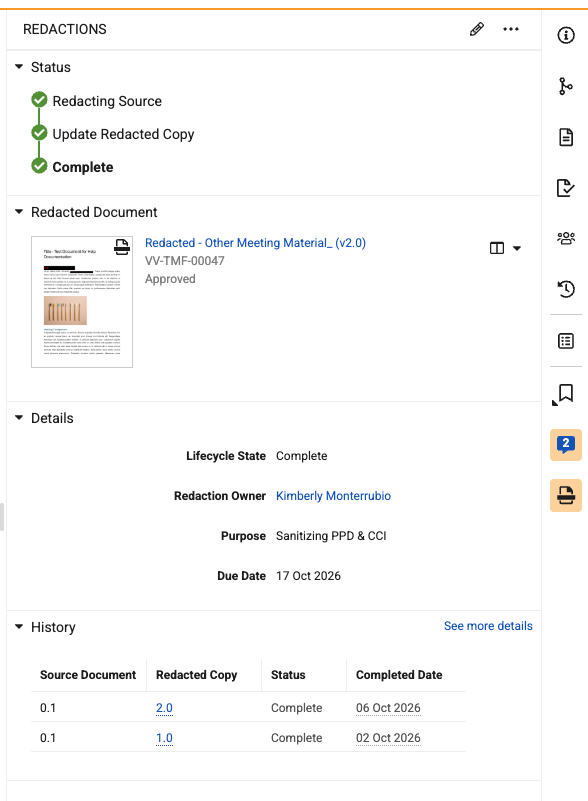
The Redactions panel on the Doc Info pane displays relevant information about source documents that contain redaction annotations:
When a document does not contain any redaction annotations, or the user does not have the appropriate permissions to redact documents, the Redactions panel is not displayed on the Doc Info pane, and redaction annotations are not displayed on the annotations panel, and the Redaction annotation tool is not available.
The Redactions panel displays the following sections:
- Status: Displays the redaction process status.
- Redacted Document: Displays the most recent redacted copy, if available. You can view or download the latest redacted copy from this section.
- Details: Displays details for the most recent Redaction record, including its Lifecycle State, Redaction Owner, Purpose, and Due Date. You can edit these details directly within the Redactions panel.
- History: Displays the history of the redacted copies, including their version numbers and when they were generated. You can view the current or previous redacted copies from this section.
Redaction Status
The Status section on the Redactions panel displays the current status of the redaction process steps for the source document and its generated redacted copy.
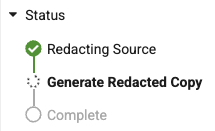
The current step in the redaction process is displayed in bold. The following status indicators are displayed for each status:
- Not Started (): An empty circle is displayed to indicate the redaction process step has not yet started.
- In Progress (): A gray spinner is displayed to indicate the redaction process step is in progress.
- Complete (): A green checkmark is displayed to indicate the redaction process step is complete.
The following steps are displayed with an indicator for their current status:
- Redacting Source: This step indicates that redaction annotations exist for the source document but a redacted copy has not yet been generated, or new redaction annotations have been added since the previous redacted copy generation and a new redacted copy can be generated.
- Generate Redacted Copy or Update Redacted Copy: This step is an intermediate step between Redacting Source and Complete. When the redaction process is in Redacting Source, you can click the Generate Redacted Copy step (or Update Redacted Copy if a redacted copy has already been generated) to generate the redacted copy.
- Complete: This step indicates that a redacted copy has been generated for the source document, and redaction annotations have not been modified since the redacted copy was generated.
Adding Redaction Annotations
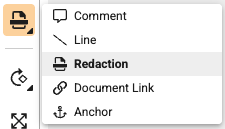
You can add redaction annotations to a source document using the Redaction () annotation tool. You must have the appropriate permissions to redact documents.
See Annotating Documents for additional information about working with document annotations.
To add redaction annotations to a source document:
- Open the document you want to redact in the document viewer.
- Select Redaction () from the annotation tools menu.
- Using the Redaction tool, highlight the text or area you want to redact. Vault opens a blank redaction annotation in the annotations panel.
- Optional: Enter a Comment for the annotation.
- Select the Redaction Type from the drop-down, which categorizes the redaction and determines its appearance both the source document and the redacted copy.
- Optional: Select a tag for the annotation.
- Click Save.
Repeat the above steps to add additional redaction annotations.
Note: By default, the CCI (cci__sys) (Commercially Confidential Information), PPD (ppd__sys) (Protected Personal Data), and Other (other__sys) system-managed Redaction Types are available for users when creating redaction annotations. You cannot modify these Redaction Types, but you can deactivate them to make them unavailable for users to select when creating redaction annotations.
Editing Redaction Annotations
You can edit, delete, move, hide, and reply to existing redaction annotations. The Resolve annotation action is not available for redaction annotations.
Updating Redaction Record Details
The Details section of the Redactions panel displays the Lifecycle State, Redaction Owner, Purpose, and Due Date of the source document’s current Redaction record. You can edit these details directly within the Redactions panel.
To update Redaction record details:
- In the Redactions panel, click Edit (pencil).,
- In the Details section, select the Redaction Owner, Purpose, and Due Date as needed.
- Click Save to save the details.
Previewing Proposed Redactions
When configured by an Admin, you can download a PDF preview of the source document with its proposed redactions. Proposed redaction renditions show the redaction annotations as they are displayed in the document viewer, and are useful for routing to other users as part of the redaction review process before generating the redacted copy for distribution.
To download the proposed redaction rendition, select Proposed Redaction Rendition from the Download section on the document viewer’s All Actions menu.
You can also preview the proposed reaction rendition and redacted copy in the Renditions section of the Files panel on the Doc Info pane. In that section, you can download the document files, or open the documents in Split View mode.
Generating the Redacted Copy
Once you are done adding redaction annotations to the source document, you can generate the redacted copy. Vault removes concealed text and the redactions are displayed according to the selected redaction type for each annotation.
To generate the initial redacted copy:
- In the Redactions panel, click Generate Redacted Copy in the Status section, or select All Actions > Generate Redacted Copy.
- In the Generate Redacted Copy dialog, click Continue to confirm that you want to generate the redacted copy.
Vault updates the status in the Status section of the Redactions panel during redacted copy generation. Once the redacted copy has been generated, the Status section displays Complete, and a thumbnail of the redacted copy is displayed in the Redacted Document section.
Updating the Redacted Copy
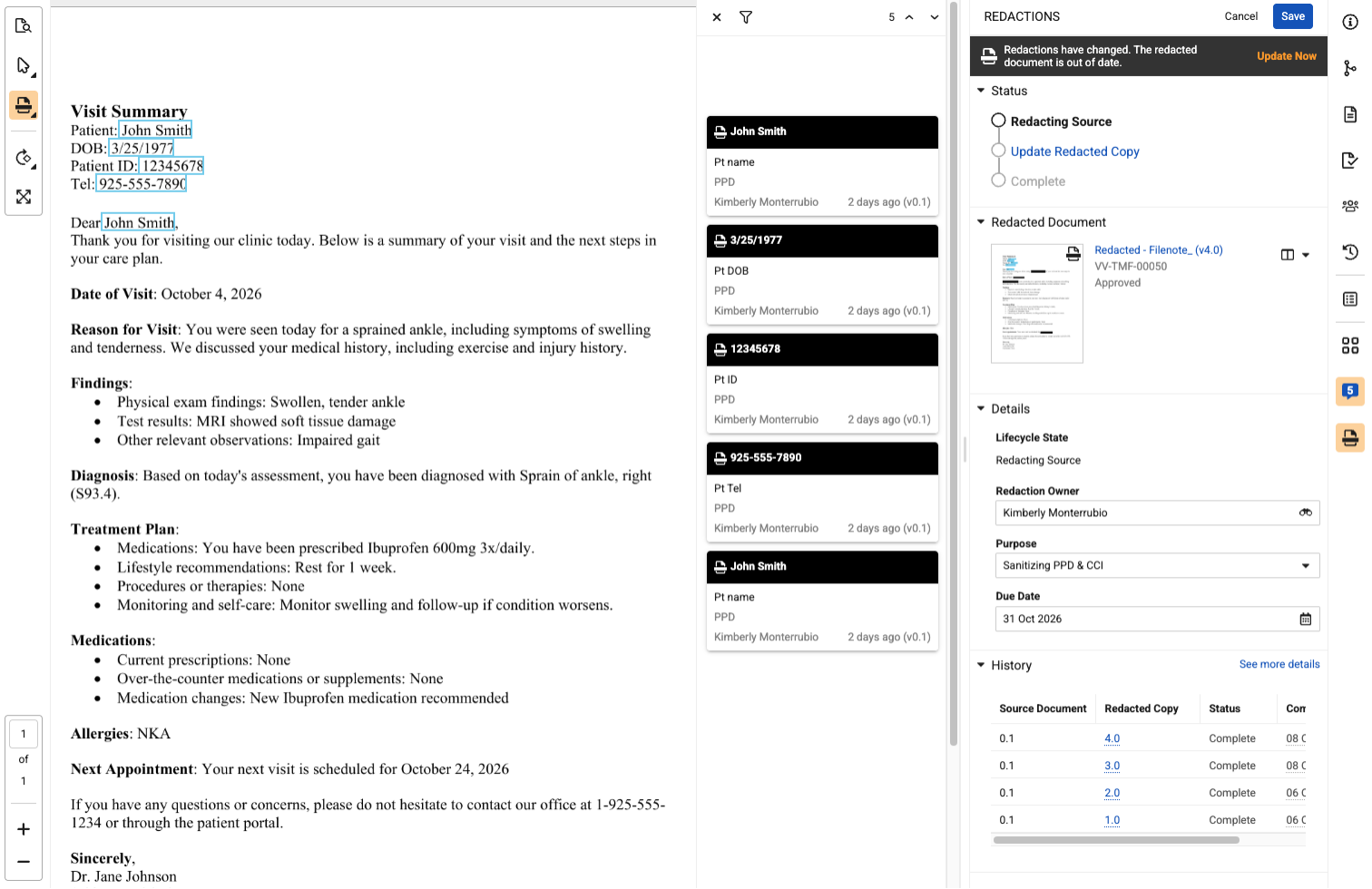
After generating a redacted copy, if you or another user modifies the redaction annotations on the source document, or if the content on the source document changes (assessed based on the MD5 value of the viewable rendition), the document viewer displays a banner informing you that the redaction annotations have changed, with a link to navigate to the Redactions panel:

The Redactions panel also displays a banner informing you that the redaction annotations have changed, with a link to generate a new redacted copy:
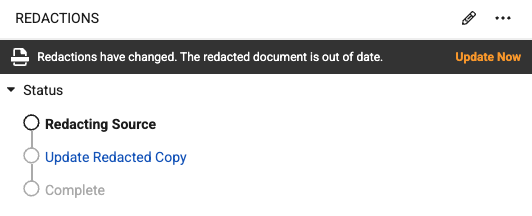
If you delete a redaction annotation and more redaction annotations exist, the Redactions have changed banners are displayed. However, if you delete the last remaining annotation, the banners are not displayed, the most recent redacted copy remains displayed in the Redactions panel, and the status remains as Complete. Vault does not display a link or action to update the redacted copy, because there are no remaining redaction annotations.
To update the redacted copy:
- In the Redactions panel, click Update Redacted Copy in the Status section, or select All Actions > Update Redacted Copy.
- In the Update Redacted Copy dialog, click Continue to confirm that you want to generate an updated redacted copy.
Vault updates the status in the Status section of the Redactions panel when generating a new redacted copy. Once the new redacted copy has been generated, the Status section displays Complete, and a thumbnail of the new redacted copy is displayed in the Redacted Document section.
Viewing Redacted Document Copies
After generating the initial redacted copy or generating an updated redacted copy, the Redacted Document section on the Redactions panel displays a thumbnail of the most current redacted copy. You can view the current redacted copy in several ways:
- Click the document thumbnail or document name in the Redacted Document section to open the redacted copy in the document viewer.
- Click Split View () in the Redacted Document section to open the redacted copy in Split View mode.
- Select Mode Download Options > Download in the Redacted Document section, or All Actions > Redacted Rendition in the document viewer, to download the redacted copy.
The History section on the Redactions panel displays a list of redacted copies that have been generated for the source document. Hover over a redacted copy version number to view a document hovercard with information about the redacted copy, or click the version number to view the redacted copy in the document viewer. Click See more details in the History section to view a dialog with additional information about the redaction history.
You can also view redacted copies from the Library. Redacted copies are displayed with the Redaction () icon.
Exporting & Importing Redaction Annotations
When configured by an Admin, you can use the Export Annotations action to export redaction annotations and other annotations to a PDF. You and other users can review, create, modify, and reply to redaction annotations in the exported PDF using Adobe Reader or Acrobat, and then use the Import Annotations action to import the marked up PDF back into Vault. See Using Offline Annotation for more information about exporting and importing annotations.
To export redaction annotations on a source document, first filter the annotations panel to hide all other annotation types. Then, select All Actions > Export Annotations in the document viewer, select Apply Filters, and click Continue to export the redaction annotations.
After adding and modifying redaction annotations in Adobe Reader or Acrobat, select All Actions > Import Annotations on the source document in the document viewer. Select the PDF in the Import Annotations dialog and click OK to update the source document with the imported annotations. You must have the appropriate document role permissions.
Redaction Import Logic
Vault uses the following logic when importing redaction annotations:
- Vault automatically attaches imported redaction annotations to the source document’s existing Redaction record in the Redacting Source state, or creates a new Redaction record in the Redacting Source state if one does not exist.
- Vault analyzes imported redaction annotations based on page location, annotation box geometry, and redaction type. Vault creates new annotations, does not duplicate identical annotations, and updates annotations in place.
- If Vault cannot determine the placement for new or modified annotations, they are converted to page-level annotations.
- Vault attempts to match imported redaction annotations with an active Redaction Type in Vault using the redaction’s native subtype, overlay text, and annotation metadata. If Vault cannot match to an active Redaction Type, the Other type is applied to the imported redaction annotation.
- Vault only considers redaction markup during import. Vault ignores other markup, such as comments or highlights.
- After importing redaction annotations, Vault does not automatically generate or update a redacted copy. The Redaction record remains in the Redacting Source state, allowing users to manually review the imported redaction annotations.
Related Permissions
The following permissions control the ability to redact documents:
| Type | Permission Label | Controls |
|---|---|---|
| Document Role | Redact | Ability to create, edit, and move redaction annotations on the latest version of the document. Ability to import redaction annotations from a marked-up PDF. Ability to generate and update redacted copies. |