Quick Check Agent is designed to help content owners and coordinators prepare their documents for MLR review by detecting common issues before submission, such as spelling errors, prohibited phrases, or missing warnings and safety information. Leveraging a Large Language Model (LLM), Quick Check Agent proactively identifies a wide range of issues in your promotional materials, minimizing unnecessary rejections during review, and accelerating time to approval.
Quick Check Agent is available with Veeva AI for PromoMats and can be enabled directly within your PromoMats environment. Documents and data do not leave your Veeva Vault system architecture, data remains secure, and user security is respected.
Note: Veeva did not create the LLM that Quick Check Agent uses, nor do we train it using your data. Our implementation is designed to work for all customers.
Accessing the Quick Check Agent Panel
Once configured by an Admin, the Quick Check Agent panel is available when all of the following conditions are met:
- The document type belongs to the Quick Check Agent document type group.
- The current document version is the latest version.
- The document does not exceed 100 pages in length.
- The document has a PDF viewable rendition and does not contain audio or video content.
- The document is not in the Steady, Superseded, Deleted, or Obsolete states.
- The document is not archived.
- The document is not a binder or CrossLink.
While viewing a document in the document viewer, click  to open the Quick Check Agent panel.
Note: The Quick Check Agent quality check outcomes are not audited, and are not reportable. Quality check results are specific to the document version being assessed.
Performing Quality Checks
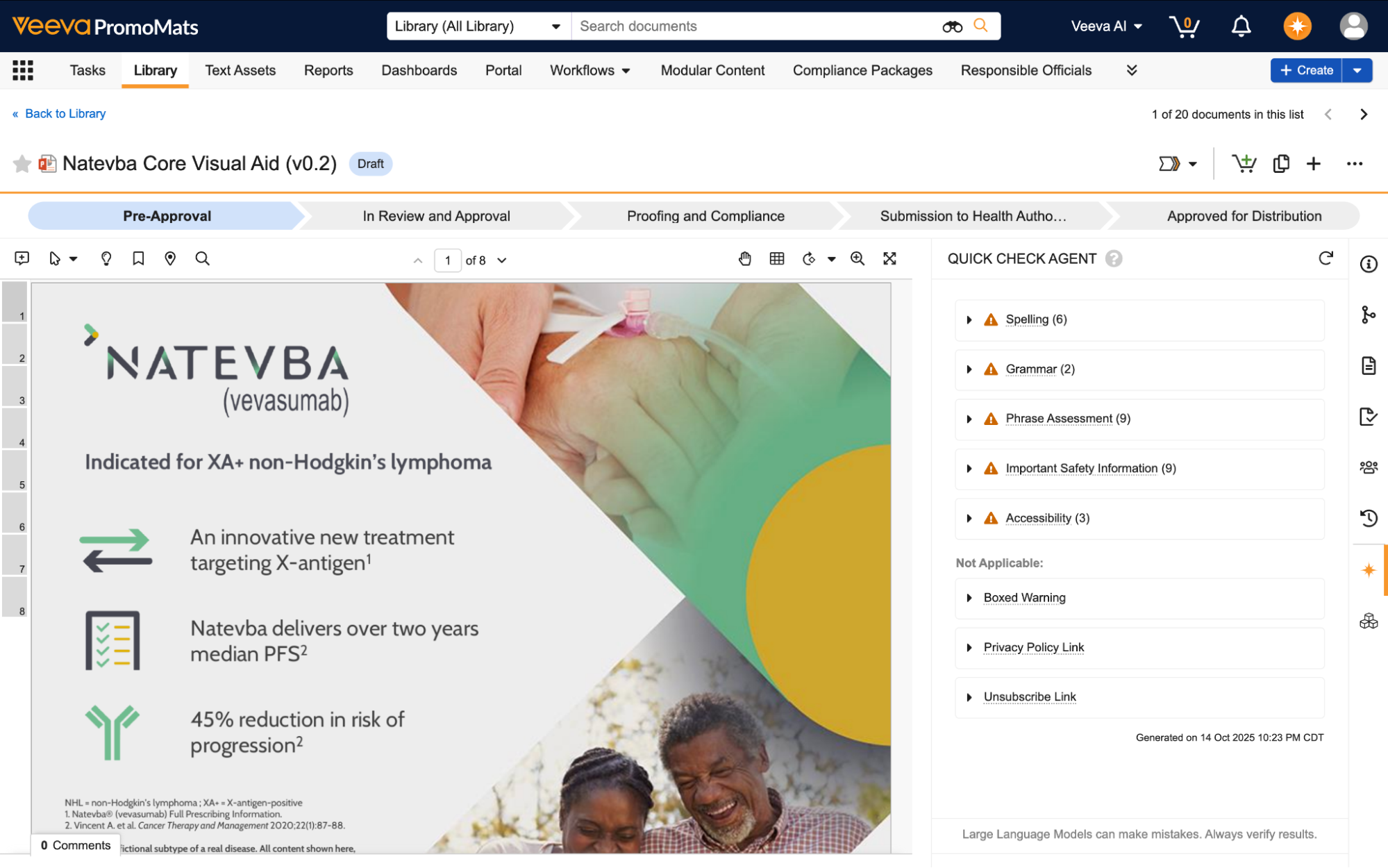
When you open the panel, Quick Check Agent immediately begins performing the following predefined quality checks on the document:
- Spelling
- This check identifies potential spelling errors in the document, focusing on misspellings, common misuses, and typos, while considering industry-specific terminology.
- Grammar
- This check identifies potential grammatical errors in the document, such as verb tense, punctuation, pronoun and subject-verb agreement, sentence structure, and modifier placement.
- Phrase Assessment
- This check identifies wording and phrases that may require further scrutiny, including those suggesting promotional or potentially misleading language. Quick Check Agent integrates directly with your Claims Library, automatically treating Eligible Claims as Allowed to prevent false positives during this check.
- Boxed Warning (United States Only)
- This check determines whether the document’s Product requires a Boxed Warning according to the FDA database of Boxed Warning products.
- If Quick Check Agent determines that a Boxed Warning is required, it first detects if one is present, and, if so, evaluates its format and location.
- Quick Check Agent does not review the text of the Boxed Warning.
- If the document is not for the United States, the Boxed Warning check is hidden and does not run.
Note: If your Product is not yet listed in the FDA’s database (typical for premarket products), you can mark your Product as an anticipated Boxed Warning product.
- Important Safety Information (United States Only)
- This check is divided into two actions that determine whether a related ISI document exists and, if so, whether the Important Safety Information in that document is reflected in the current document.
- The specialized ISI Identification action extracts all ISI statements from the Related ISI document under review, and the dedicated ISI Analysis action determines if those statements are present, missing, or reworded in the document.
- If there is no related ISI document, Quick Check Agent determines this check to be Not Applicable. If the document is not for the United States, the ISI check is hidden and does not run.
- Privacy Policy Link
- This check determines whether the document requires a link to a privacy policy based on its content and intended use, and extracts links to determine if any privacy-related links are present and match existing Website object records.
- Unsubscribe Link
- This check determines whether the document requires an unsubscribe link, and extracts links to determine if any unsubscribe links are present and match existing Website object records.
- Accessibility
- This check validates whether the document conforms to web accessibility standards, identifying potential barriers for users with disabilities.
- Quick Check Agent evaluates structure and organization, language and readability, and assesses visual elements for text contrast and alt text.
Note: Veeva defines these quality checks. You cannot edit these checks or add custom ones.
Viewing Quick Check Agent Results
When the quality checks are complete, each check displays an icon to indicate whether the check passed () or identified issues (). Click the check title to expand or collapse the section. Quick Check Agent displays if it encounters an error, such as when the document exceeds the page limit or the LLM responds with an invalid message.
To navigate to an identified issue, click the page number to jump to the issue or the page the issue is on. By default, Vault does not save any detected issues to the document, but you can choose to save specific issues as comment annotations by clicking the Save As Annotation () button.
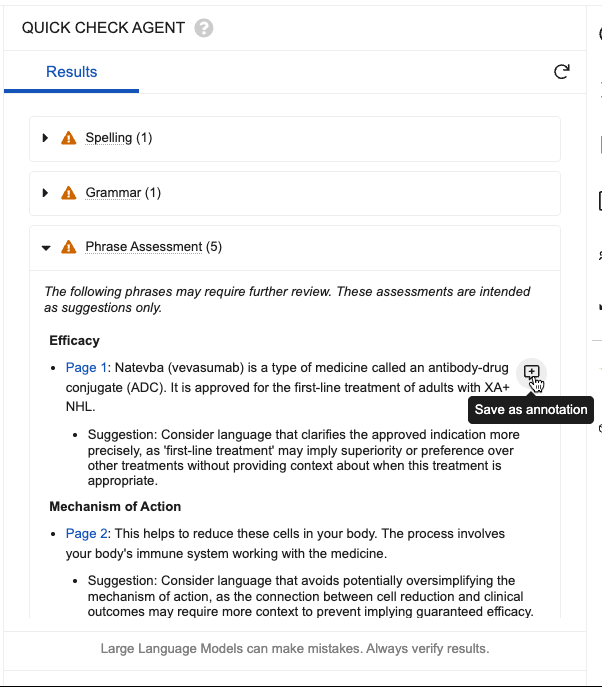
To clear Quick Check results and run them again, click Re-run the Quick Check Agent.
Tailoring Quick Check Agent with Learned Terms
To improve the quality of results relating to your organization, Quick Check Agent can be tailored by providing it with your organization’s specific terminology and phrases as additional context. When reviewing detected spelling errors, grammar errors, or phrases for review, users can convert specific findings into Allowed Terms, effectively telling Quick Check Agent not to raise these items again in the future. By default, the Allowed Term record is tagged with the document’s Brands, Countries, and Language (on multi-lingual Vaults), along with the specific quick check it was added from, meaning the Allowed Term only applies to documents matching those attributes. Business Admins can modify these attributes.
In addition, from the Text Asset object where Allowed Terms are managed, Business Admins can also define Prohibited Terms. This tells Quick Check Agent to always flag these items if they are found in matching documents (even if the AI normally would not catch them).
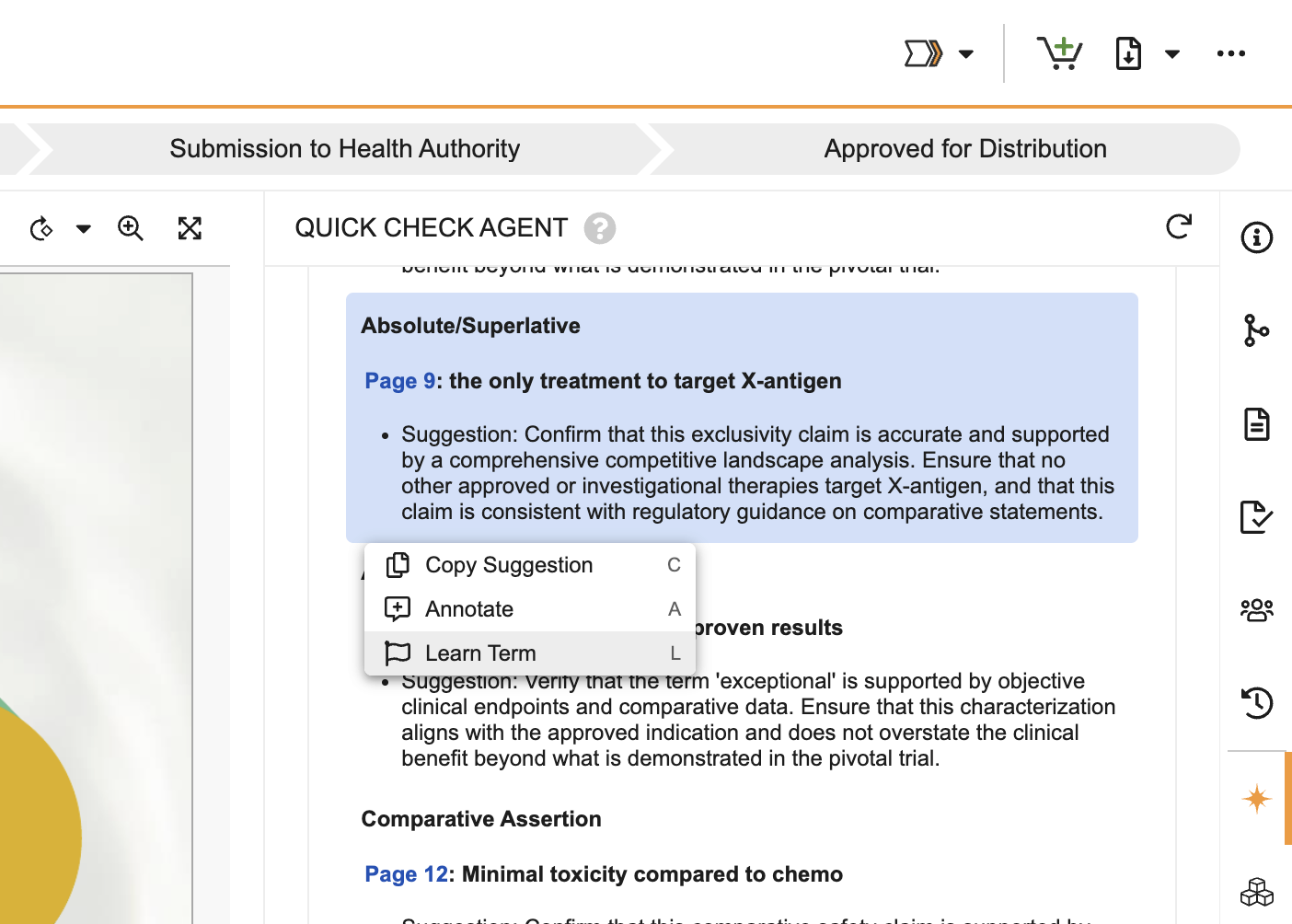
When you select an issue in the Quick Check Agent, the Issue menu opens to display the following actions:
- Copy Suggestion: Copies the suggested text to the clipboard.
- Annotate: Creates an annotation on a document. Users can annotate all Quick Check issues across all categories.
- Learn Term: Creates a new Allowed Term record based on the selected text, automatically populating the record with all the document’s Brand and Country values.
Alternatively, with the menu open, you can quickly execute an action using keyboard shortcuts by pressing C for Copy Suggestion, A for Annotate, and L for Learn Term.
Dynamic Instructions
Allowed Terms and Prohibited Terms are programmatically identified after the quick checks have produced their results, augmenting the final result set. However, Business Admins can also choose to enable a Yes/No field on specific Allowed Terms and Prohibited Terms to include them in the Phrase Assessment’s detection logic. By doing so, the Phrase Assessment check looks for terms like these during its initial run by looking for semantic matches and flagging them accordingly.
Matching Websites
When performing the Privacy Policy Link and Unsubscribe Link quality checks, Quick Check Agent attempts to match any extracted links to existing Website object records based on the Country and Language fields on the document and object records. If the Country and Language fields are blank on a Website record, Quick Check Agent considers the record to apply to all values.
Using the Content Agent
The Content Agent that powers the Veeva AI Chat is Veeva-aware, meaning that it has a deep structural knowledge of Vault and its functionality. The agent reviews all document fields for expanded context and distinguishes between a document’s content and its document fields. This allows the agent to provide accurate responses quickly. The Content Agent also does not guess when reviewing ambiguous data in charts or images. If a value is unclear, the agent reports this to the user and sticks to objective analysis. The agent’s responses are grounded in the document’s content and its own Vault-based knowledge.
Using the Veeva AI Chat
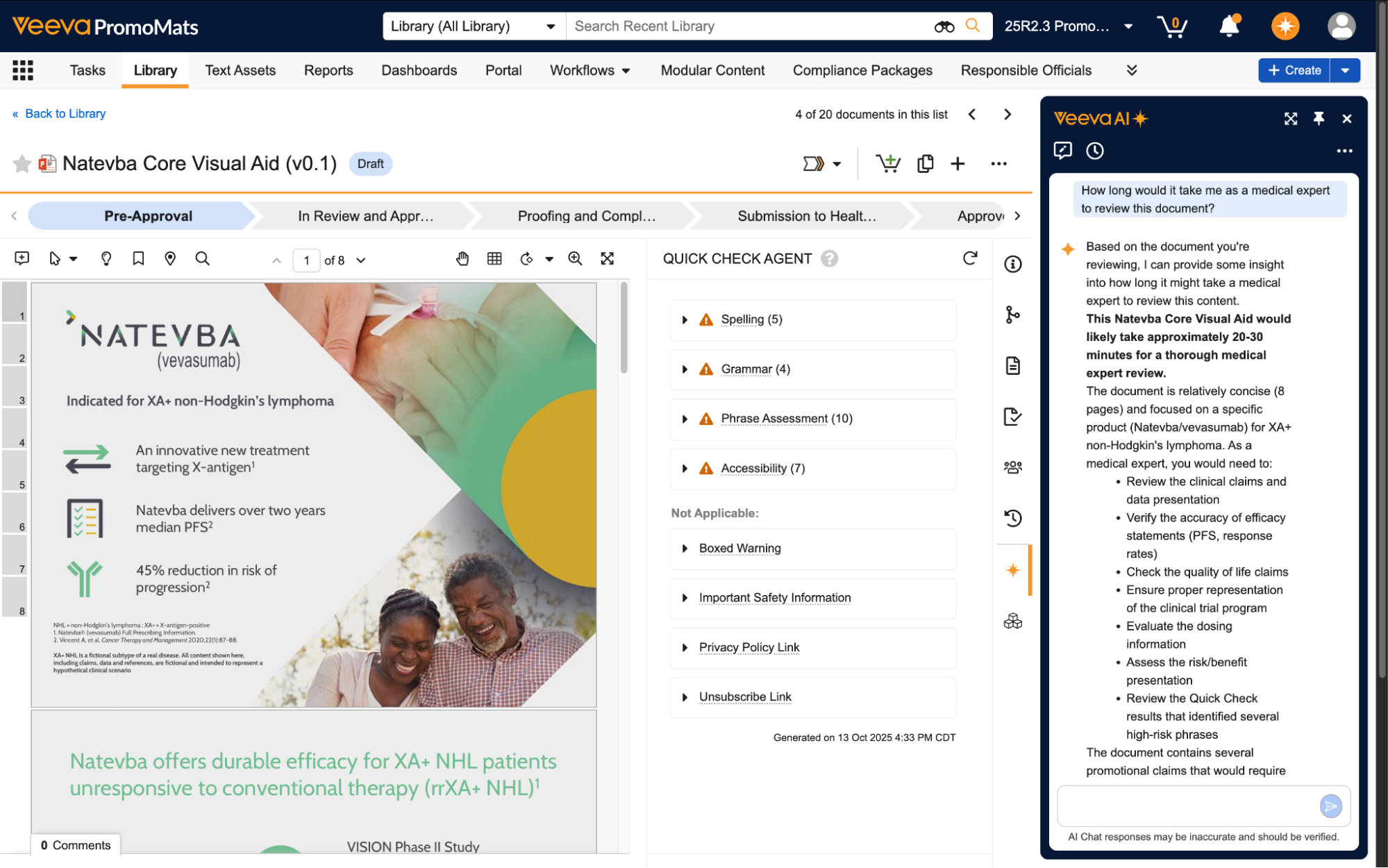
Veeva AI for PromoMats also provides access to an intuitive AI Chat, powered by the PromoMats Assistant, which you can access by clicking  in the upper right of the Vault page. You can ask the Assistant questions about the specific document version you are viewing. Responses are generated from the document’s text, images, Quick Check Agent results.
To use the AI Chat, enter your message in the text box at the bottom of the chat. Press Send ( ) or press the Enter key to send your message, or press Shift + Enter for a new line. You can enter a maximum of 5,000 characters per query. The Assistant displays
  while generating your response.
The Veeva AI Chat automatically determines which chat-enabled Agent action, Ask Questions or Analyze Images, should be used to respond to your question or request.
Using the Reviewer Summary
The Reviewer Summary for the Content Agent includes automated discrepancy detection to cross-reference document text with metadata, which flags mismatches in brand, market, and audience intent. This can highlight critical errors for such things like mislabeled documents.
The Complexity Assessment section can calculate a review difficulty rating based on the density of the clinical data and visualizations, which can help reviewers estimate the effort required.
The Key Fields section offers a side-by-side view of the system metadata and AI-analyzed content with status indicators to help accelerate verification. The Key Fields section also can include the Document Metadata Fields context item.
Related Permissions
The following permissions control your ability to use Quick Check Agent:
| Type | Permission Label | Controls |
|---|---|---|
| Document Role | View Content | Ability to view and use the Quick Check Agent panel on a document version in a given lifecycle state |
| Document Role | Annotate | Ability to save an identified issue as a document annotation |